Fiori for ABAP - Launchpad Configuration
Why do we create a Launchpad Configuration and what is it used for in our Fiori Elements app? In this article, we'll look at the process and the available properties.

Table of contents
In this article, we'll look at the Launchpad Configuration and what it does in the target system after deployment. We'll examine various properties.
Introduction
So far, we've deployed our Sales App to the ABAP environment. We manually created the Launchpad Configuration as a descriptor item. But what happens when we want to deploy the app on-premises? Depending on the release, there are no Launchpad App Descriptor Items available, at least not for manual creation. This is only possible in a later release. Therefore, we should take a look at the Launchpad Configuration, which we can create directly when setting up the app or configure again later. Here we'll look at various properties and settings available to you.
Configuration
Let's first look at creating the configuration at two different times.
Wizard
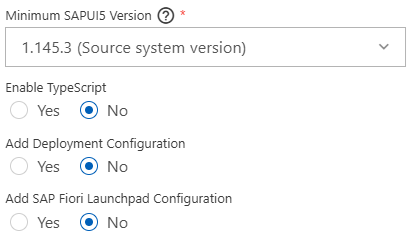
The first way to create the basic configuration is directly when running the wizard for generating the Fiori Elements application. In this step, the configuration must be explicitly activated to unlock an additional step in the wizard. The screenshot below shows an example of the Launchpad configuration and how to activate the step in the wizard.
Application Info
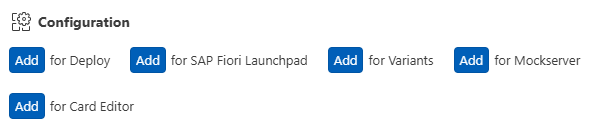
Is the application already generated in the system? Then you can also restart the additional wizard via the Application Info. To do this, open the Application Info and look for the item "for SAP Fiori Launchpad". Click the blue "Add" button. You can then restart the wizard for this single step.
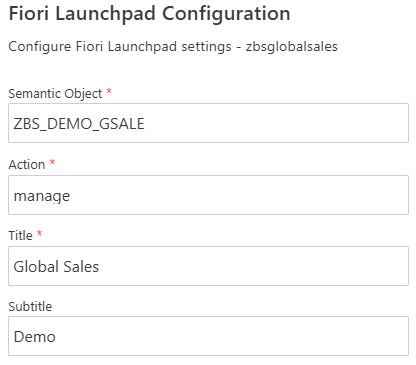
In the wizard, you specify basic settings that are important for the tile later in the Launchpad, such as the title and subtitle so that the tile has a label, as well as a semantic object and an action. The semantic object and the action are important for navigation within the Launchpad and together form a unique key. For the semantic object, you can use any term that describes your application. The action is usually something like "display" or "manage," which describes the actual action the application can perform.
Settings
Running the wizard now defines a corresponding entry for cross-navigation in the manifest.json file. The settings you made in the wizard are applied, corresponding i18n entries are created, and additional settings are stored.
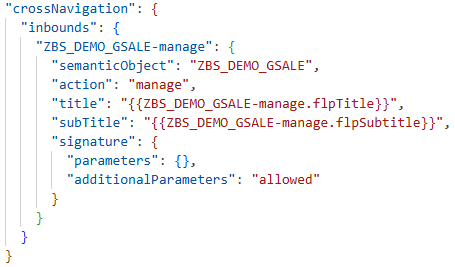
Basically, that completes the tile settings. However, additional properties and settings are available that we can use and that will later be displayed in the tile. Similar to the Launchpad App Descriptor Item, we can, for example, include information that appears at the bottom of the tile, define a custom icon that will later be available as an icon, or create an Indicator Data Source. This is used to dynamically display a number on the tile. In this case, we use the main service as the data source. This references the main service in the manifest file. We define a path, in this case for the entity, and the count that is calculated, i.e., the number of available sales, and define that the tile should be refreshed every 10 seconds. This means that every 10 seconds, a request is sent from the launchpad to check if the number has changed and update it accordingly.
"crossNavigation": {
  "inbounds": {
    "ZBS_DEMO_GSALE-manage": {
      "semanticObject": "ZBS_DEMO_GSALE",
      "action": "manage",
      "title": "{{ZBS_DEMO_GSALE-manage.flpTitle}}",
      "subTitle": "{{ZBS_DEMO_GSALE-manage.flpSubtitle}}",
      "info": "... from the Manifest",
      "icon": "sap-icon://travel-expense-report",
      "indicatorDataSource": {
          "dataSource": "mainService",
        "path": "SASale/$count",
        "refresh": 10
      },
      "signature": {
        "parameters": {},
        "additionalParameters": "allowed"
      }
    }
  }
}
This allows you to specify additional settings directly when creating the configuration, making the tile a bit nicer or perhaps even adding further information directly to the tile, so that it isn't only visible when the app is loaded.
Deployment
If we now perform a standard deployment, a Launchpad App Descriptor Item is automatically generated in the system. At the end, you'll find a "_UI5R". This indicates that this is an automatically generated item, which we cannot modify using the built-in editor. The change is only possible via the Launchpad Configuration in our app. Opening the item, we find the corresponding settings we already made in the app. Our app ID was automatically entered, and a target mapping was created. We also find the semantic object and the action we defined previously.

In the lower section, a tile configuration has already been created, and all values have been entered as defined in the application. A dynamic tile was selected as the tile type because we have a service that automatically reloads the number. All information was accordingly transferred to the default details, and the information for the dynamic tile was also set. This essentially corresponds to the configuration that we can either perform manually here or obtain automatically via the Launchpad Configuration of our application.

Complete Example
You can find the saved resources for our application in our GitHub repository. This will allow you to track all future customizations to the Fiori app or use the resources for deployment. The current changes can be found in this Commit.
Conclusion
For Launchpad Configuration, you normally have the Launchpad App Descriptor Item available, which you can create manually in the ABAP Environment. However, if you want to deploy your application to an on-premises system, for example, you might not be able to create this item manually, depending on the release. There is also the option to define a Launchpad Configuration in the manifest.json file and deploy it along with the system. In the on-premises system, the tile is then assigned to a standard technical catalog.