From ALV to List Report (Variants)
You want to switch from a report with ALV to a RAP object with a list report? How do you actually handle variants and settings in this process? Let's take a detailed look at the comparison.

Table of contents
In this article, we'll look at variant handling within different UI technologies, how it works, and what you can do with it.
Introduction
A report and a Fiori Elements application are built very dynamically. There are selection options and filters that allow you to set restrictions, and there is output that can be dynamically adjusted. In most cases, the user wants a customized view of their data and may not want to use the full range of options available within their application. The goal is to get the most accurate view of the data the user needs without overloading the UI or requiring repeated input. There are variants you can configure to help you make these settings reusable.
SAP GUI
Let's take a look at the classic SAP GUI variant and how you can use its variations.
Selection Screen
Let's start at the beginning. On the selection screen, we make settings for a report, limiting the document type and the number of people we want to see. To avoid having to enter this information every time we start the report, we find the button for saving the variant at the top of the bar. In this case, it says "Save as Variant...".

Next, we land on a new screen where we can define our variant. We give the variant a name and a description. Various settings are now available here that we can configure: e.g. For example, the variant can be protected later, different screens can be displayed, and various fields can be manipulated, such as hiding them, setting them to Required, or making other adjustments.

The saved variant can then be selected on the selection screen as soon as the report is started. Automatic assignment is not supported; the user must always manually select which selection variant they want. Another major advantage of variants is that default values can be assigned to fields, e.g. a dynamic date.
ALV
Let's go a step further and customize our ALV, because here too we have the options to adjust the layout: hiding columns, changing the sorting, defining totals and groups. Just as we need it. For this, we adjust the ALV and only display the descriptive texts and the currency, and we sort by person in descending order.

In the menu at the top, you will find the Layout button. Here you have the option to change the layout, select different layouts, or save the layout. Since we have now made adjustments and want to choose the layout later, we go to "Save Layout...".
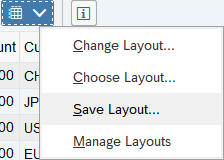
Basically, we have further layout settings in the menu. However, since we are now finished with our layout, we can give it a name and a description. Additionally, there are options available to choose whether the layout should be saved specifically for our user and only apply to our user, and whether it should be set as the default. You should be careful when overriding a default layout, as this can also affect other users' settings, meaning they will see your layout and might be confused because information is missing.

In the example above, we haven't set the layout as the default, but we have the option to select the layout via the selection screen and then apply it directly after the selection. There's an interface for this: We can define a parameter on the selection screen and pass it to the ALV, which then loads the correct variant. To do this, we would need to adjust our selection screen variant again and set the layout parameter to the current layout.

Fiori
Let's now go to our Fiori Elements application and look at the variant management. It can be said that the management of variants has become much simpler, as we no longer have a separation between selection and output.
Configuration
In the first step, we configure our layout, which we want to save in the next step. In the filter bar, we can make the two settings, just as we did on the selection screen. We customize the list using the gear icon. Here, we can hide columns we don't need and set the sorting criteria via a second tab. Unfortunately, simply hiding fields like in ALV by right-clicking on the column is not possible.

Variant
You can find the variant management for a Fiori application above the filter bar. There you will find the text "Standard" with a drop-down button. If you press it, the menu opens and you see the standard variant that is loaded when you start the app. The asterisk after "Standard" means that we have made adjustments to the variant. We can now create a new variant using the "Save As" button.

In the variant configuration, we won't assign a key this time, but rather the variant name directly in a readable format. In this case, we check the box for "Set as Default" to set the variant as the default for our user, and for "Apply Automatically" to automatically select this variant when the application loads. Since we have the "Public" flag If we don't set this, this variant only affects us when working with the Fiori application.

If we now refresh the application, our variant is automatically assigned, loaded, and the data is displayed. We can see this firstly at the top, where the variant name we assigned is selected, and secondly, where the columns and selection criteria are pre-populated accordingly.
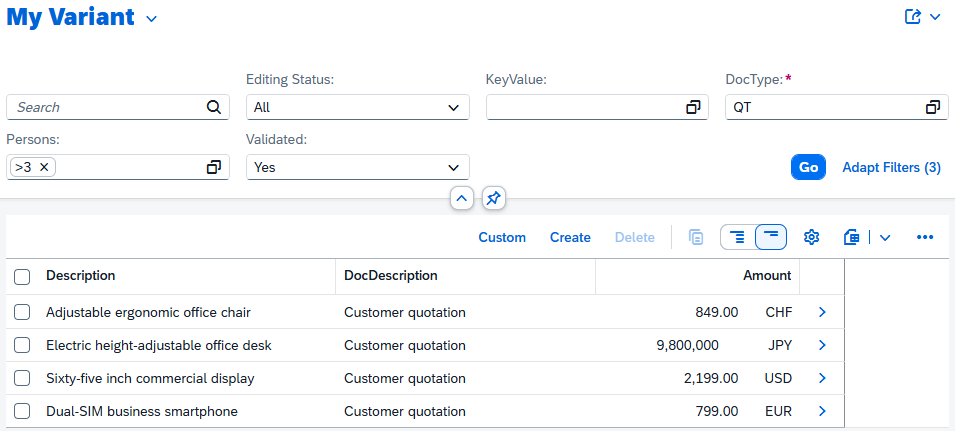
The use and management of variants has therefore been greatly simplified in Fiori Elements. This also has the advantage that we only need to maintain one variant in one place to get the settings for the filter bar and the list, which simplifies the whole thing and makes it more user-friendly.
Complete Example
In this chapter, you will find all the resources for comparing the two applications. We have placed the RAP object in a new repository so that you can clone it. The program is simply a resource that is also located in this repository. You can use both the table and the generation class from the repository to generate the data for the report. If you're on the same system, you only need the table and the class once.
Conclusion
Variants are an important component for giving the user a specific view of a report and the data. Variants work somewhat differently in the two worlds. It must be said that in the GUI world, you need many more settings to achieve the same results as you can in a Fiori Elements application.