From ALV to List Report (Selection)
You want to switch from a report with ALV to a RAP object with a list report? Where exactly do you find the different selection possibilities? Let's take a detailed look at the comparison.

Table of contents
In this article, we'll take a look at the possible selection settings and how they work in the two variations.
Introduction
An important part of any application that displays data is data selection. This involves specifying filters to limit the amount of possible data and thus provide various options for accessing the data. There are various options offered by the SAP standard in the SAP GUI, such as selection via select options, a parameter, a checkbox, or radio buttons that impose specific restrictions.
Structure
Let's compare the old and new systems by looking at our applications.
SAP GUI
If we start the transaction or application directly via SE38, we land on the selection screen. The selection screen only displays the various criteria available to restrict the data. In our example, four fields. No further data or output is displayed on the selection screen. This is to prepare our selection of the setting.

SAP Fiori
In the List Report in Fiori Elements, the filters are displayed above the table output. This means that after clicking on the tile in the Fiori Launchpad, we land directly in the List Report, where we see filters and possible data at a glance. In this example, we have only included a screenshot of the filter bar; this contains all displayed filters.
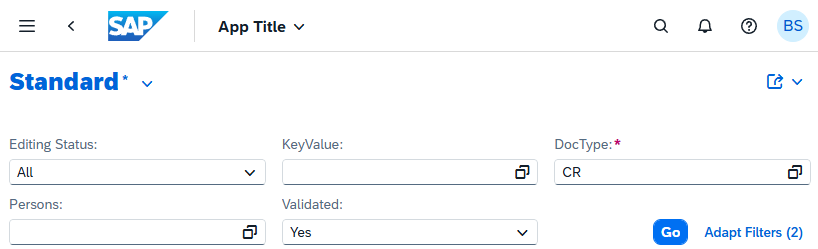
The advantage of a Fiori Elements application is the "Adapt Filters" button, which is shown in the screenshot. We can dynamically display additional filters via this, which is not normally provided for in the standard version of a selection image. All filter criteria that are activated for this entity are offered, which is normally almost all fields, unless they are virtual fields, calculated fields, or have been explicitly deactivated.
Elements
In this chapter, let's look at the representation of the various restrictions and possibilities and examine their implementation in both worlds.
Select Option
The Select Option is the most flexible element on the selection screen because, if left blank, all entries are selected. Otherwise, we can apply various filters. In our example, we used a Between (BT) and an Equal (EQ) to determine the data records. The display shows the select option, specifically the first entry in each case. The button at the end indicates that further settings have been configured.

We have now applied the same settings in the Fiori application. Here, the system attempts to visualize the different entries within the field, as long as there is enough space. Therefore, we can clearly see the Between value, as well as the Equal value that has been set. Visibility always depends on the available resolution.

Parameters
A parameter allows only one value, which we can enter via the selection screen. The disadvantage of a parameter is: If it is left empty, the database will then be checked against the value "empty", which can result in no results being returned. A parameter contains only a field value and no further comparison operations.

Fiori also uses a select option for the parameter. This makes it possible to leave a value empty and still get results. If this is not desired, as in our case, we must set the field to Mandatory (see further down in the article).

To ensure that we can only enter a single value into the field, we define the filter to Single using the annotation. The system only allows us to enter exactly one value and does not offer the possibility of further restrictions, such as greater than or equal to, less than or equal to, or between. The value Equal (EQ) is always transmitted to the backend.
@Consumption.filter.selectionType: #SINGLE
DocType,
Checkbox
In a classic GUI application, we can also use checkboxes to specify selections. We have the option to set a yes (X) or no (empty) by checking the checkbox or leaving it empty. As with parameters, this can lead to problems if, for example, we want entries with both values.

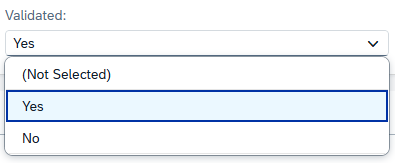
In Fiori, a dropdown menu is provided for this purpose, which is automatically generated by the system when, for example, we use the ABAP_BOOLEAN data type. With this option, it's also possible to set "Not Selected", meaning the checkbox is neither True nor False and is therefore ignored during selection. This gives us a flexible way to check when we don't care whether a field contains a "Yes" or "No", but want to see all entries. A Select option is used in the background.
Required Fields
An important component is also a required field to classify whether an entry is mandatory. In this case, we have set our parameter as a required field (OBLIGATORY). An asterisk is placed before the field to indicate that input is required.

In the filter bar, a red error message is displayed next to the field as soon as the application is opened, even before any input has been entered. This makes the required fields even more prominent than in the SAP GUI. An asterisk is also present here to mark the field as required.
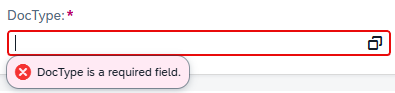
In this case, we use a mandatory annotation, which ensures that the field requires mandatory input. This allows us to achieve the behavior of the SAP GUI and force user input.
@Consumption.filter.mandatory: true
DocType,
Execution
In the SAP GUI, you will find the classic Execute button or the F8 key via the UI. Depending on the selected theme, the button may be located in the top section of the button bar, or in the lower section if it is a more modern theme. The design depends on the selected theme within the SAP GUI. After executing the selection, the ALV (Application Value List) is usually displayed, which contains the data that has been processed by the filter. The actual selection screen is then no longer visible.

In the List Report, after clicking the Go button or pressing ENTER, the selection is executed against the bound entity in the table. The data is then displayed in the lower area directly below the filter bar and can be viewed. One difference here is that the selection area remains available in the application, allowing filters to be adjusted dynamically. In most cases, however, not all data is pulled directly from the database. Instead, only a portion of the data is displayed via pagination to improve performance and optimize the transfer from the server to the browser.

Complete Example
In this chapter, you will find all the resources for comparing the two applications. We have placed the RAP object in a new Repository so that you can clone it. The program is simply a resource that is also located in this repository. You can use the table and generation class from the repository to generate the data for the report. If you are on the same system, you only need the table and class once.
Conclusion
Basically, all functions from the SAP GUI world are also available in the Fiori world, even if they have been simplified and, for example, only use select options, which in turn increases the flexibility of the individual fields. Basically, you need to rethink your approach to accessing the data.