BTP - News Apps
The News app for managing news on My Home has now been rolled out in the ABAP environment. In this article, we'll take a look at the app and its configuration.

Table of contents
In this article, we'll take a look at the "Manage News" application and how you can use it to publish and manage news in your ABAP environment.
Introduction
A while ago, in a article, we dissected how the news app on the "My Home" homepage actually works. We discovered how to provide data via an Excel upload to see this in the application. We noticed that the application is missing in the current release. In the latest release, version 2605, the "Manage News" app was delivered, allowing us to manage the actual news directly within the system. Therefore, in this article, we'll review the benefits of this new release and how we can now manage our news uniformly within the system.
Preparation
First, we need to prepare the system: to see the applications, and second, to ensure the news is loaded correctly from the tables.
Configuration
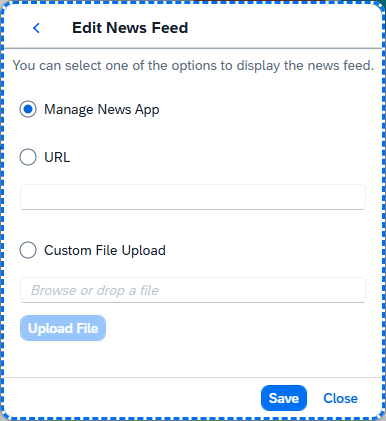
To do this, we go to Key User Extensibility and adjust the "My Home" page again (see previous article). Since the last tutorial, you may have changed the settings for the tile. To do this, go to the tile and access the options. There you will see which data source is used for the news. The "Manage News" app should be selected here to ensure that all changes to a news item are automatically pulled from the application.
Permission
To allow us to access the application within the system, two business catalogs have been deployed. The first business catalog is primarily for displaying the news, and the second business catalog is for managing the news, images, and categories. This means that for the following examples you need the second catalog.
- Common User Experience - News Display (SAP_CORE_BC_CUX_NWS_DSP_PC)
- Common User Experience - News Management (SAP_CORE_BC_CUX_NWS_MNG_PC)
Maintenance
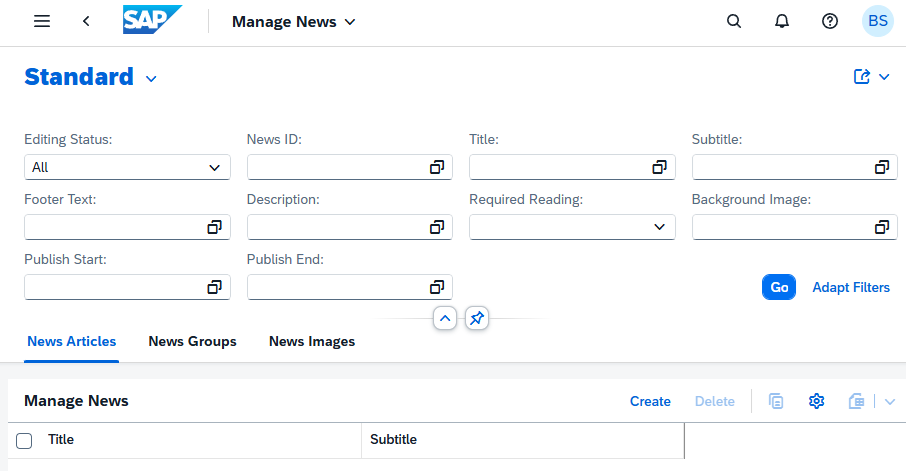
All maintenance options are available via the application "Manage News" (F8438). In the following sections, we'll look at the various components.
General
You can find areas for the application under the filter bar, such as the various options and objects we create. The best order for creating them is from back to front, as we'll start with the images and groups before publishing the first articles, which will then reference these objects.
Images
Uploading images is relatively simple. Here, we use the inline action for uploading elements, which ultimately saves the images directly to the database. In addition to the name, we can also specify alternative text, which is especially important for screen readers. When the image is created, text in the logged-in language is automatically added. We can add further languages using the Create button; the text is always synchronized automatically, at least for the current language.

Groups
Groups then form a collection of different articles that are bundled under the group. We can specify various pieces of information that will also be displayed later on the tile, such as the title, subtitle, and footer text. For the background image, we can use one of the uploaded images. There are also categories such as "Critical" and "Mandatory." For example, the "Mandatory" category means that this group cannot be hidden and is always visible to the end user. As with the images, there is a text management section at the bottom where we can set up multiple languages for titles, subtitles, and footer texts. In the middle, we see articles that have already been written under this group. This means that if we want to delete the group later, we should ensure that it no longer contains any articles.

Articles
On the actual article, we have further options available. Here, in addition to the title and subtitle, we also see corresponding identifiers such as a background image that is displayed, the criticality (whether the article needs to be read), and the corresponding status. We can define when an article becomes visible and when it is hidden again using a start and end date. This keeps the newsfeed lean, especially when it comes to articles and information that only have a certain lifespan. Below you'll find a rich text editor for writing your news articles and formatting them with various elements.
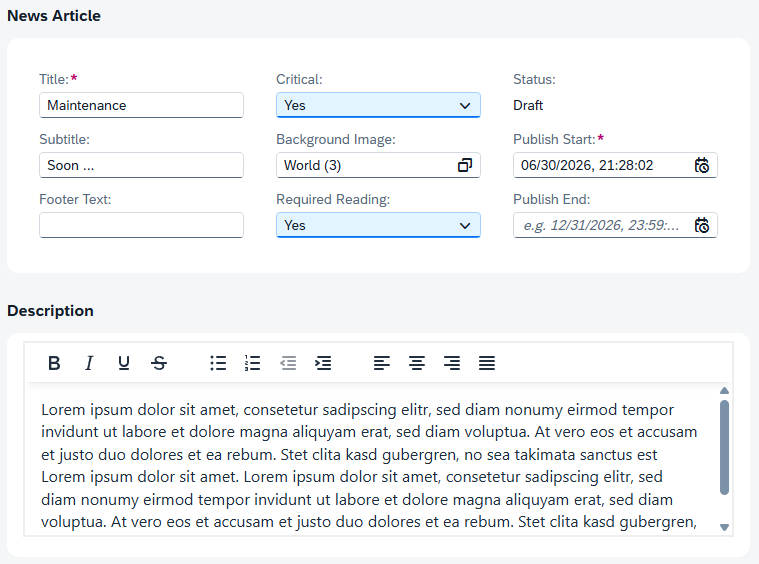
Below the actual article, you'll find the text management tool, allowing you to translate the entire news article and texts into other languages. For longer texts, there's a dedicated edit button, which opens a popup with a rich text editor for editing the text. You can then assign the article to a group so it's displayed together under that group. There's also an app assignment feature you can use. This acts as a permission check: if you specify one or more applications, the user will only see the article if they have permission to use that application. Otherwise, the article won't be displayed. If no app is assigned, then all users of the system will see the message.

Display
Let's now test the messages in our system. If we go to the "My Home" page, we see a corresponding group in the "News" section, which is currently displayed. There you can also see information such as the title, description, and footer, which are formatted. There is also an indicator that, for example, a critical news item is contained here. This further highlights that if we mark messages as important, they will also be displayed in the overview. You can start the carousel by clicking the play button at the top of the tile. You can choose whether the carousel runs smoothly or whether we only see the current page and have to manually switch between the different groups.

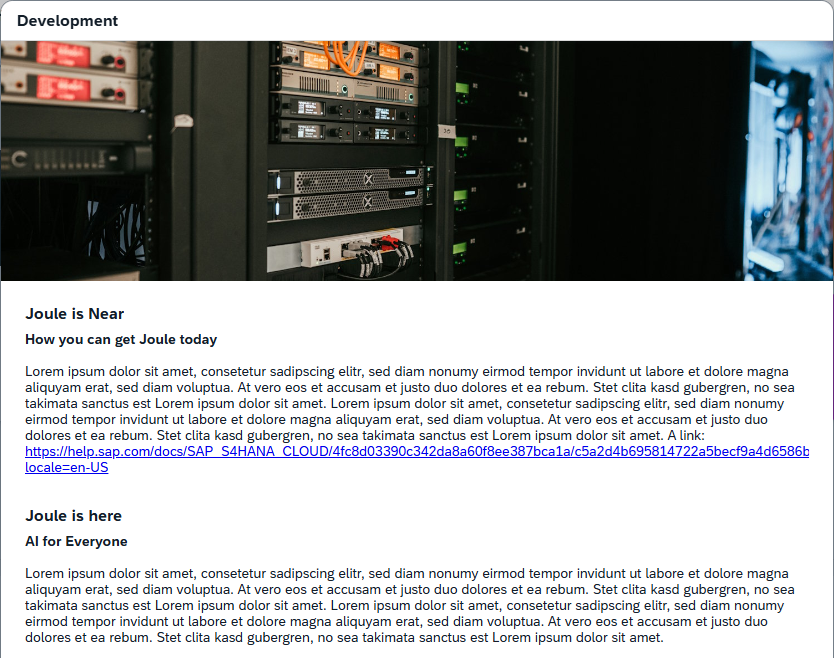
Clicking on the corresponding group opens a popup with all the articles it contains. Here, for example, we see two articles that we created and assigned to the Development group. It was also possible to insert a link using the rich text editor, which is now clickable in the UI. This way you can get an idea of how the individual news items are displayed in the system.
Conclusion
The news app has finally been released, and it's now possible to create attractive news articles within the system and equip them with specific indicators. In addition to image settings, there's also a start and end date option, which improves the display of the various news items and limits their duration. Overall, we like the application.
Further information:
SAP Help - Manage News