RAP - Navigation (App to App)
How can you navigate to another application within your Fiori application without the user having to manually switch apps? Let's take a look at navigation between Fiori apps.

Table of contents
In this article, we'll look at app-to-app navigation and focus on two main ways to implement it, along with their respective advantages and disadvantages.
Introduction
Currently, our Sales App also contains partner information, at least the partner's number. It would be beneficial to have navigation to the partner's app, allowing users to jump directly from our application to the partner's site to view further information or make adjustments. This ultimately saves the business user the time of searching for the appropriate app, and they can jump directly to the relevant application from within the context.
Prerequisite
In order to test the navigation between the applications in the next step, both applications must be deployed on the system. Navigation does not work via the preview, and the links are not generated. The reason for this is that the semantic object only takes effect in the launchpad, where the configuration is stored, which is how the system knows whether the target app and the navigation to it are available or not.
In our example, we use our Sales App as the source and want to navigate to the partner, since we use partner data within our Sales App. Similarly, in the previous Tutorial, we deployed the Partner App to the system and created various Launchpad configurations to test them.
In our test, we will adjust three columns: the Partner as the actual key field and semantic key, the Sales Date as a normal field, and the Sales Month as a critical field to observe the different effects on the fields.

Variant - Consumption
The Consumption variant is primarily based on the annotation "Consumption.semanticObject". This indicates that this variant has been selected. This also has the disadvantage, for example, that navigation to only one target is possible, since the semantic object overrides the settings in the Core Data Service for other navigations. In this example, we extend the metadata extension for ZBS_C_SASALE.
Link (Object)
So, in the first step, we define the semantic object using the partner number and the sales year. We do not specify the action or any other information here.
@Consumption: {
  semanticObject: 'ZBS_DEMO_PMANUAL'
}
PartnerNumber;

@Consumption: {
  semanticObject: 'ZBS_DEMO_PMANUAL'
}
SalesYear;
Checking the result in our application, we already find a link highlighted in blue next to the partner number and the sales year. This means the navigation is already working.

Now let's execute the navigation on the first entry and click on the partner number. Our app then navigates to the partner app, but here we see the complete list of partners being loaded; no filter is set. If you look at the URL, you'll see that all the information from the data record has been copied into it as criteria, except for the partner ID, which is the field we clicked.

We'll now repeat the same process for the sales year. The navigation works; this time the partner number is populated in the filter. Checking the URL, we'll see that the sales year is missing this time. This means that the currently clicked field is not included in the filter.

Link (with element)
In the second example, we now extend the whole thing with the object mapping "Element". We know that we need the partner number for filtering, so we add the partner number as an element. This is the name of the target element, which is addressed in the target app.
@Consumption: {
  semanticObject: 'ZBS_DEMO_PMANUAL',
  semanticObjectMapping.element: 'PartnerNumber'
}
PartnerNumber;

@Consumption: {
  semanticObject: 'ZBS_DEMO_PMANUAL',
  semanticObjectMapping.element: 'PartnerNumber'
}
SalesYear;
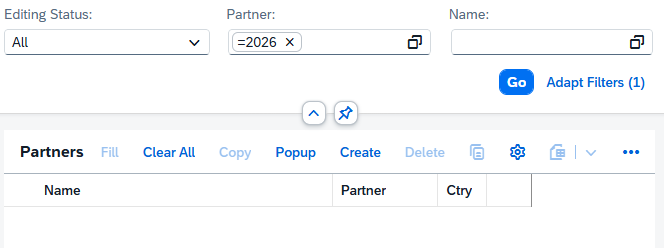
If we now navigate via the partner number again, the partner number in the target app will be populated and the filter will be applied. We will only see one record.

If we click on the sales year, we will also land in the partner app. This time, the partner field will be populated with the current year, which we clicked. This means that, in the end, the current element on which we defined the semantic mapping object is used to populate the target element.
Link (with Binding)
In the third example, we now use the Additional Binding on the fields. Here, we map the local field and the remote field to each other. We use this variant for both fields, the partner number and the sales year.
@Consumption: {
  semanticObject: 'ZBS_DEMO_PMANUAL',
  semanticObjectMapping.additionalBinding: [
    { localElement: 'PartnerNumber', element: 'PartnerNumber' }]
}
PartnerNumber;

@Consumption: {
  semanticObject: 'ZBS_DEMO_PMANUAL',
  semanticObjectMapping.additionalBinding: [
    { localElement: 'PartnerNumber', element: 'PartnerNumber' }]
}
SalesYear;
When navigating via the partner number, we now land back in the target app; the partner number is correctly populated.

Similarly, when navigating by sales year, we land in the partner application. The partner number is correctly populated, and the filter works.

Variant - Inline
Now let's look at an example where the navigation is located within the item. It's important that you use the annotation "Consumption.semanticObject"; from the previous example not in your Core Data Service.
Link (WITH)
In this example, we use the addition WITH_INTENT_BASED_NAVIGATION to define navigation on the field. We set the semantic object and the action to directly access the navigation. In this case, we forgo mapping between the two fields. All information is in the same entry and not as an additional entry.
@UI.lineItem: [
  { position: 20,
    type: #WITH_INTENT_BASED_NAVIGATION,
    semanticObject: 'ZBS_DEMO_PMANUAL',
    semanticObjectAction: 'manage'
  }
]
PartnerNumber;

@UI.lineItem: [
  { position: 32,
    importance: #LOW,
    type: #WITH_INTENT_BASED_NAVIGATION,
    semanticObject: 'ZBS_DEMO_PMANUAL',
    semanticObjectAction: 'manage'
  }
]
SalesYear;
Now, if we click on the elements, the navigation is executed and we land in the target app. The filter is applied correctly to both fields, even though we haven't defined a mapping. Here, the elements are identified based on name similarity in the URL filter.

Additional Binding
You primarily need the additional binding (semanticObjectBinding) if you use different names within your Core Data Service. To establish the mapping with the target app, you need to define this additional mapping.
Buttons
Navigation doesn't always have to be via a link; it's also possible to implement buttons in various places specifically for navigation. We'll do this in this chapter.
Button (List Report)
In this case, we want to display a button in the list, directly alongside the other options. To do this, we define a custom element in the LineItems. We can also assign an order to this element and activate it for intent-based navigation. Besides the semantic object and the action, we also need to specify a binding. We then define the text that appears on the button via the label.
@UI.lineItem: [
  { position: 33, criticality: 'DataCriticality', criticalityRepresentation: #WITH_ICON, importance: #LOW  },
  { type: #FOR_INTENT_BASED_NAVIGATION,
    semanticObject: 'ZBS_DEMO_PMANUAL',
    semanticObjectAction: 'manage',
    semanticObjectBinding: [{ localElement: 'PartnerNumber', element: 'PartnerNumber' }],
    label: 'To Partner' }
]
@EndUserText.label: 'Sales Month'
SalesMonth;
A new button (To Partner) then appears in the UI, which behaves as follows:
- If we have not selected a record in the list and click the button, the navigation is performed, but no filter is populated.
- If we select a record and then click the button, this record is selected and the mapping is established. We then see a record in the target app.
- If we select multiple data records, multiple partner numbers are transferred to the target app and entered as a filter. We then receive multiple data records, according to the filter.

Button (Object Page)
If we want to add an additional button for navigation, we can do this via an additional item in the Identification section. For this, we define it as type FOR_INTENT_BASED_NAVIGATION, define a corresponding action and optionally a binding, and give the button text via the LABEL addition.
@UI.identification: [
  { position: 33 , qualifier: 'GENERAL', criticality: 'DataCriticality', criticalityRepresentation: #WITH_ICON },
  { type: #FOR_INTENT_BASED_NAVIGATION,
    semanticObject: 'ZBS_DEMO_PMANUAL',
    semanticObjectAction: 'manage',
    semanticObjectBinding: [{ localElement: 'PartnerNumber', element: 'PartnerNumber' }],
    label: 'Open Partner' }
]
SalesMonth;
Let's look at our application. An additional button is generated on the object page, which appears next to the other buttons in the upper part of the header. Clicking this button navigates us to the partner app with the applied filter.

Differences
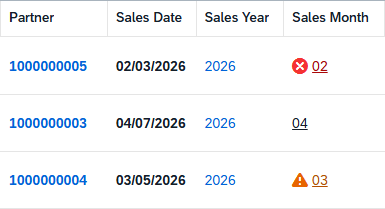
Is there actually a difference in using the two variants? In the first case, we use the variant with the "Consumption" annotation to generate the links on the three fields. As you can see, the partner number is highlighted in bold, and the sales date, for example, still has the criticality indicator.
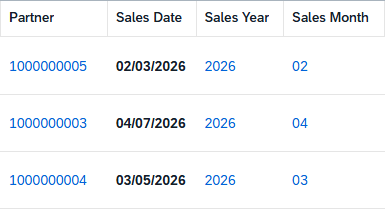
In the variant where we define our semantic navigation within the object (variant Inline), all formatting options have disappeared. The partner and sales date are displayed normally, and our criticality indicator has been removed. Instead, the link is always blue and displayed normally.
Hint: Mixing both variants in the same Core Data Service should be avoided. Here you should decide how the fields should be formatted and whether certain formatting options are important to you.
Complete Example
You can find the complete example in GitHub in the corresponding package for the Sales App. The changes from this article can be found in this Commit and you can follow the changes, plus the additional information.
Conclusion
Navigation via semantic objects and information in our app simplifies operation through links and buttons that lead to the corresponding target app, enabling faster maintenance. This is a convenience feature for our end users. However, it only works in the deployed state.