ABAP in Practice - Use the News App
In this practical example, we'll look at how to populate the new News app with information in the ABAP environment. We'll analyze the current ABAP delivery of the application and the service to find the correct format.

Table of contents
In this practical example, we will use various tools to analyze an existing app and try to populate the new News app with information.
Introduction
In Release 2602, the My Home start page was delivered in the ABAP Environment, which already exists in Public Cloud, Private Cloud, and On-Prem. This feature is intended to make the launchpad more visually appealing and display important information at a glance.

Task
The actual task is to maintain the news section in the application and populate it with new information. You can use any information you can find for this purpose. Basically, you can start your search with the Release Notes for the ABAP Environment.
Hint: In the next section, we will discuss the solution. If you would like to complete the task independently first, you should pause here.
Solution
In this chapter, we will discuss the Solution and the various steps we can use for the analysis.
Official Source
As already described in the article mentioned above, we use the official blog post in the SAP Community for initial research. It refers to the official SAP help documentation for further information about "My Home". Going to the subpage there, we find a News category. However, if we want to make more settings, we are redirected to the Administrator Settings. In the lower section, we find further information on how to actually make adjustments. This refers to the "Adapt UI" function of Key User Extensibility. There, we have various options available, which are described in the documentation, such as an RSS feed or the RASD tool (Release Assessment and Scope Dependency). This tool generates an Excel file that we can then upload later. However, we receive no information about the format of the RSS feed or the exact structure of the Excel file for the RASD tool.
Keyuser Extensibility
Let's switch to Adapt UI mode to customize the "My Home" page. Here we click on the tile for the news and receive a selection for personalizing the tile.
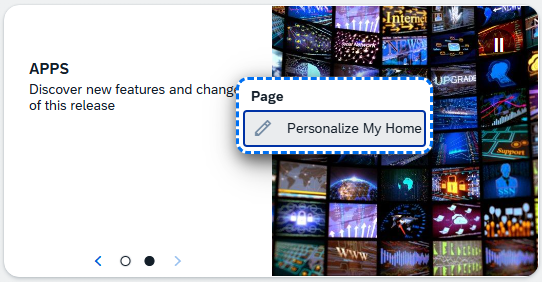
In the next popup, we see the customization for all objects and can select the news area for customization here.

In the next section, we then select the news feed to make further settings.

Here we have various options for Availability, the "Manage News App", the URL to the feed, or an Excel file for upload.

Maintaining the Data
Since we now want to maintain the data, we will search for the News App, which is also defined in the standard. We can find the entry for the app in the SAP Fiori Apps Reference Library under the entry Manage News (F8438). Checking the versions, the app is only available in the public cloud since release 2508 and in the 2025 release for on-premises and private cloud. A search in the ABAP environment also yields no results; the corresponding app is not available.
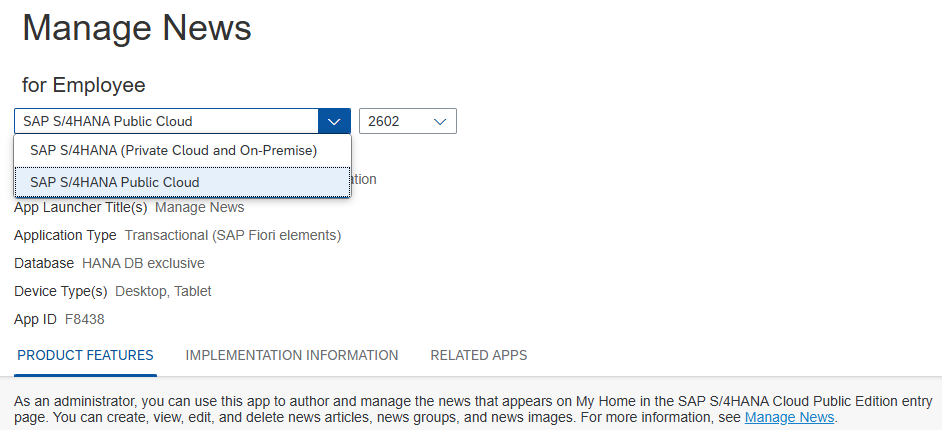
Since we currently don't have a suitable release available and the feed format is also unknown, we'll take a look at the RASD tool. We quickly found an outdated article in the SAP Community and a link to the new version. However, it quickly became clear that the tool is only available to public cloud customers, meaning we can't use it either. However, nothing prevents us from uploading an Excel file to the service. Therefore, we create a simple XLSX format for our test.
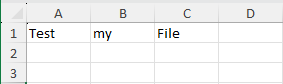
However, we receive an error from the service immediately upon upload and cannot continue working here. This isn't a problem in principle; apparently, the system still processed our file and sent us information about the faulty format. Therefore, we can now proceed with further analysis of the format and the content.

Format
To find the correct format, we need to take a closer look at the service and the validation. To do this, we open the developer tools in the browser with F12 to view the network details. There we see all the services we called and the responses they received. So let's re-upload the file and look at the request.

In the request, we find the URL and the service being called. The actual response refers to the feed reader; apparently, we passed a faulty file here, which is now causing an error in the backend. In the URL, we find the service /UI2/INSIGHTS_SRV, which can be found as a service binding in the system. This is the first service binding where we also find two service names in the definition. Behind this is an API for reading (READ) and one with further actions (REPO).

Since we want to upload a file, we are currently working in the REPO context. However, we can also find the path in the call URL if you are unsure. Since several entities are exposed externally in the service definition, we also find our endpoint NEWS_FEED in the URL.

Let's check what's behind /UI2/INSIGHTS_NEWS_FEED in the system. Here we find a core data service and a behavior definition. This means we are dealing with a business object in RAP.

The actual RAP object is quite simple. It is an unmanaged RAP object without any further actions. Since we are working in the unmanaged environment and a POST request was used in the request above, we are in the CREATE case. Other HTTP request methods would be used for UPDATE and DELETE.
unmanaged implementation in class /ui2/bp_insights_news_feed unique;
strict ( 2 );

define behavior for /UI2/INSIGHTS_NEWS_FEED alias News_Feed
lock master
authorization master ( global, instance )
{
field( mandatory :create, readonly :update) changeId;
  create;
  update;
  delete;
}
Therefore, in the next step we can look at the implementation for the CREATE method, since that's where the validation and upload should take place. With 500 lines, the method isn't really in line with Clean ABAP, which makes the analysis a bit more difficult. However, we can perform a code explain here, and the actual LLM isn't strictly necessary. Since we're currently testing a lot of Gemini, we'll use the model to have the code explained to us in more detail.

This gives us information that the logic can work with CSV and XLSX files, but also information about which fields are relevant for the validation. Three fields are defined as mandatory. We need to double-check the actual target structure, or even the table "/UI2/INSIGHTS_NF", as this defines the possible fields and data variants that we can pass via the Excel file. Furthermore, the analysis tells us that the column names are used for data assignment. With this information, we can create an initial Excel file.

The data was successfully uploaded to the file, and we receive a success message. Now we can save the customization as a new version of the page (via Key User Extensibility) and publish it in the current system.
Display
The news tile has now changed and shows us a new view. Here we first need to adjust the filter so that we can see the changes in the system.

If we click the button, we will access the settings and can choose from various Lines of Business (LOB) that we previously defined in the Excel file. Let's check the boxes in the UI and confirm the settings.
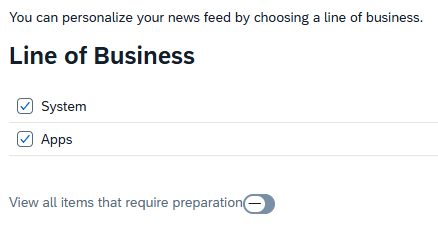
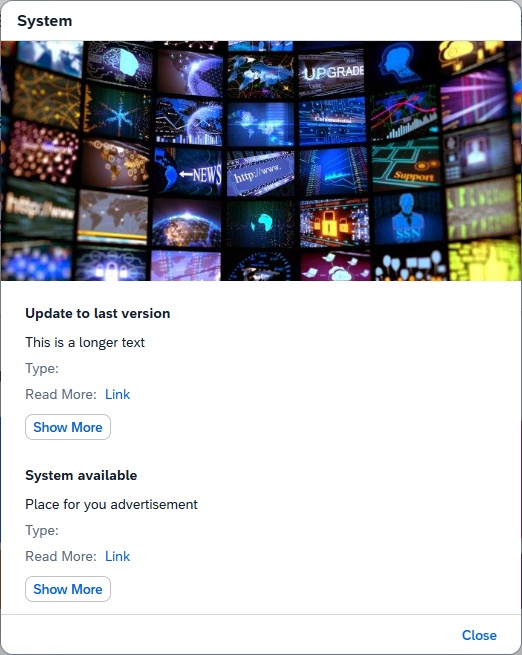
If we click on the News tile, for example when "System" is visible, we get an overview of the uploaded articles. The headline and the full text are visible. Clicking the "Read More" link opens a new tab and the link we specified in the Excel file is opened. Now we know how to populate the application with data.
Application
We could also simplify the creation process by having the system generate a RAP app.
Generation
We use the fields of the table "/UI2/INSIGHTS_NF" as a template and create our own table. We then add the necessary admin fields and set the appropriate attributes for the generator. Here we use the simple form of the Generator.
@EndUserText.label : 'News'
@AbapCatalog.enhancement.category : #NOT_EXTENSIBLE
@AbapCatalog.tableCategory : #TRANSPARENT
@AbapCatalog.deliveryClass : #C
@AbapCatalog.dataMaintenance : #ALLOWED
define table zbs_nf_news {
  key client             : abap.clnt not null;
  key changeid           : abap.char(32) not null;
  key line_no            : abap.int8 not null;
  lineofbusiness         : abap.char(255);
  solutionarea           : abap.char(1333);
  solutioncapability     : abap.char(1332);
  title                  : abap.char(1332);
  description            : abap.string(0);
  category               : abap.char(1332);
  type                   : abap.char(1332);
  scopeitems             : abap.char(1332);
  validasof              : abap.char(1332);
  functionallocalization : abap.char(1332);
  preparationrequired    : abap_boolean;
  contentupgraderelevant : abap_boolean;
  impactedartifacts      : abap.string(0);
  customobjects          : abap.char(1332);
  whatsnewdocument       : abap.string(0);
  local_created_by       : abp_creation_user;
  local_created_at       : abp_creation_tstmpl;
  local_last_changed_by  : abp_locinst_lastchange_user;
  local_last_changed_at  : abp_locinst_lastchange_tstmpl;
  last_changed_at        : abp_lastchange_tstmpl;
}
This allows us to generate a Fiori app that provides us with the necessary fields for maintenance. During generation, you might encounter some errors because the field LINE_NO is converted to LINENO, which can cause problems with existing fields. Furthermore, we need to convert the fields and/or headings for Excel export, as the Excel file requires a specific format.
Upload
Using the application's standard Excel export, we can then download the data and directly upload it to the New display. This isn't the best integration, but unfortunately, SAP objects are not released for internal use. Therefore, we are currently using the Excel file.

Repository
You can find the finished app in this GitHub repository so you can see the finished result and save time when setting up the application. The app is basically functional, but the UI and implementation aren't particularly elegant. You can then make further adjustments and improvements on your own.
Conclusion
In today's article, you primarily learned how to analyze a Fiori application and service and understand the implementation in order to create the actual source code (reverse engineering). In the end, we found the appropriate format to populate the News App with new data.