ABAP Tools - VS Code (Update 1.2.0)
The latest update for the ABAP Development Tools in VS Code is out; what features can you expect? Let's take a look at a few features and try them out in the ABAP environment.

Table of contents
This article discusses the current features of update 1.2.0, which has been released for the ABAP Development Tools in VS Code.
Introduction
In its current state, VS Code lags significantly behind the Eclipse installation. Therefore, with each subsequent release, SAP naturally rolls out more features. To keep you up-to-date and provide a brief overview of what is already available, you can find the ADT Feature Tracker on our website, where we attempt to summarize the various supported objects and features to provide an overview of the current state of the development environment. There you will also find further information and links to the official SAP pages.
New Types
An important aspect of using the IDE is therefore the availability of various object types that we need for development, in order to create and edit them. This release included many new object types, including some basics such as message classes, scalar functions, application log objects, launchpad items, transactions, and the availability of packages. Previously, creating and managing packages was not possible, which caused a significant break in the IDE if you wanted to quickly create a new package and a new application within it, as this forced you to switch IDEs. This is no longer necessary.

Hint: As always, all objects are implemented in the ABAP File Format, or AFF for short. This is an open-source project for standardizing the various object types within an ABAP system. Therefore, don't be surprised if the different objects are only visible in a file editor and as JSON objects.
New Features
Let's take a look at some of the new features delivered, what they entail, and how you can use them. As a heads-up, some features have new names, but "old" ones. The logic is structured differently in Eclipse.
Position
First, a brief note about the position of some new objects. Some functions have again been delivered as commands and are not visible in the UI. You can find these via the Command Palette. Others have been integrated as additional views. By default, these are displayed below the Explorer and the Outline. These include the ABAP Transport Organizer and the ABAP Timeline.

You can also further customize this view. For example, by right-clicking on the view, you can hide various sections if you don't need them for your work. These areas are generally always collapsible to avoid taking up too much space in your editor.

ABAP Transport Organizer
One new view is, for example, the Transport Organizer, a rudimentary implementation for displaying transports and actions within a system. When you open this section for the first time, you will most likely be prompted to select a destination. An overview of all destinations is not possible. Here, a destination is selected, and you receive all transports from that system.

In our example, we select our ABAP environment via the destination CloudDev. Currently, the filter is defined for the current user. We receive an overview of the various Workbench requests, local objects, and customizing requests. When we open the Workbench, we find the structure based on the software components or the various transport targets to which the software components are attached. Below that are the modifiable requests. In our transport request, we then see the tasks, and below the tasks, the various objects. You will find a button at the end of the object. This opens a diff and shows the changes that were made to the object via this transport request.

Furthermore, the various actions are available via the right-click menu. Here, for example, we have right-clicked on the transport request. Here we can, for example, add users, add more objects, change the user, or trigger the release.
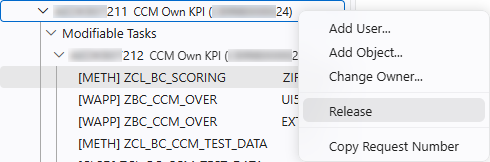
Do you want to switch systems or change the user filter? Then you will find some buttons next to the heading. These appear when you hover your mouse over the area. The first button allows you to switch the displayed system, and the second button lets you adjust the user filter, for example, to see transport requests from another colleague.

ABAP Timeline
Another new section is the ABAP Timeline. This is more like the version history that you can view for an object. Therefore, especially in the initial view, when you don't have an object open, nothing is displayed and the section looks relatively empty. Now, if we open one of our first objects, the timeline will load. Thus, similar to a Git flow, we see the various transport requests and the user who performed these changes. At the very bottom, you'll find the initial transport and the creation of the object, and at the very top, the currently active object.

You can then trigger various actions via the context menu on the individual entries, such as for example to view the changes, compare it with another release, or select the entry to then compare it with another selected entry.

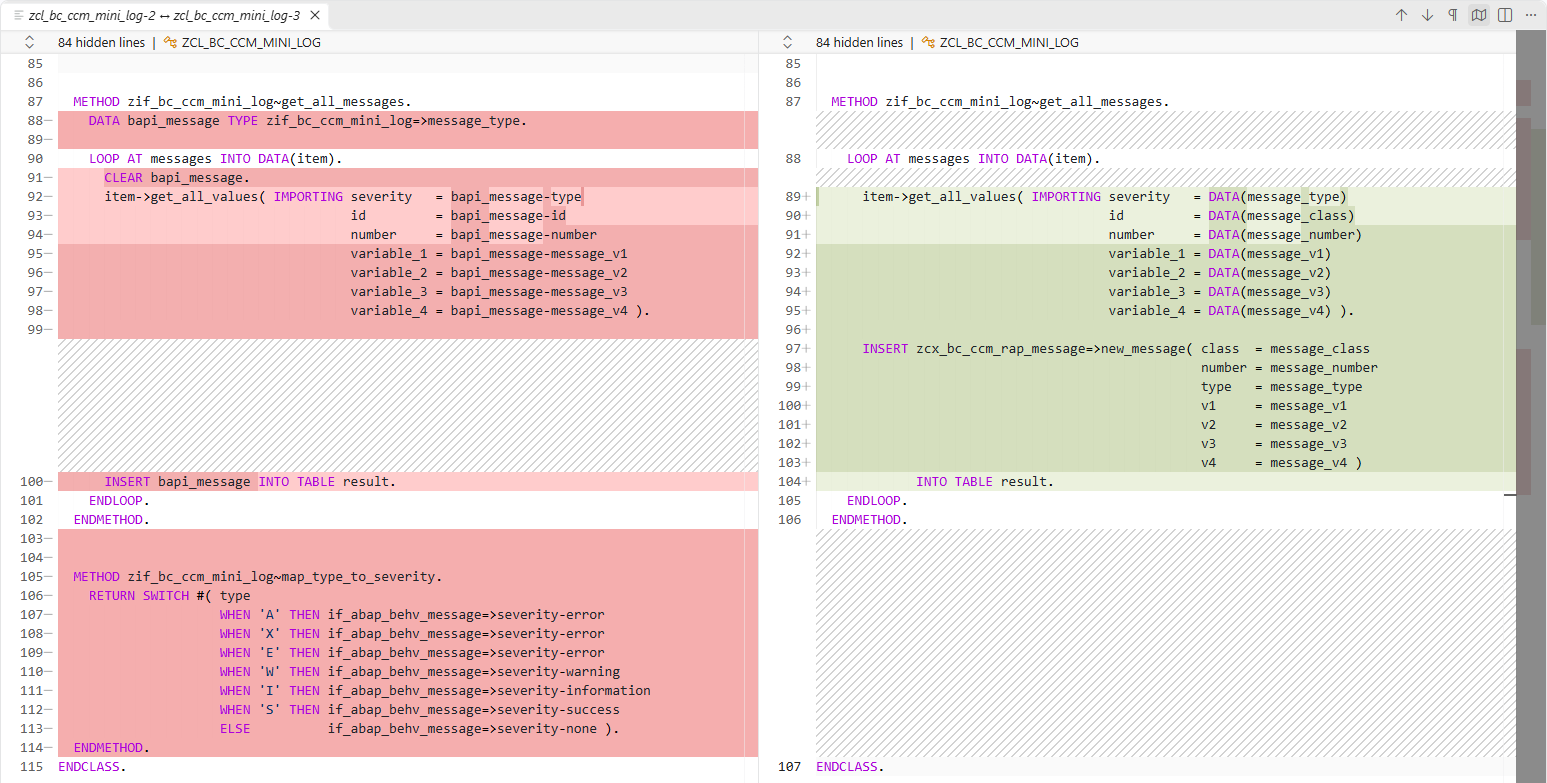
Finally, a diff view is then called for the object, where we see the changes to the source code highlighted in color. In this case, we have hidden unnecessary, unchanged source code. You can do this via the button at the top of the bar if you only want to see the various changes to the source code and don't really care about the rest of the object's context.
ABAP Source Search
A new command is available with the ABAP Source Search. You can access the new command via the Command Palette and use it for searching. The ABAP Source Search from the backend or from Eclipse is used to search the objects for content.

However, the search does not work on the standardized ABAP environment because it is not activated. ABAP Source Search must first be explicitly activated on a system, which primarily consumes HANA memory. Normally, approximately 10 gigabytes of HANA memory are required to activate the search. Otherwise, the search can be very, very slow. We would have liked to have an alternative, even if it were much slower. There are numerous classic programs for searching source code.

ABAP Feeds
An important aspect when analyzing error messages is the set of various views provided by the ABAP Feed Reader in Eclipse. These views have now been integrated into VS Code, where you can access them as individual views. To do so, go to the menu, select "View -> Open View," and search for the different ABAP instances. By choosing "ABAP Feeds," the view will appear in the lower section of the interface. Note that you will first need to log in to a system.

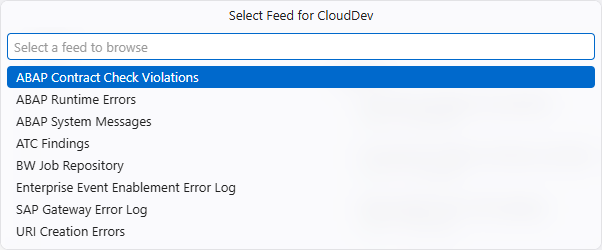
In the next step, select the feed you would like to view. In principle, all the views available in Eclipse are also at your disposal here. We will select: "ABAP Runtime Errors".
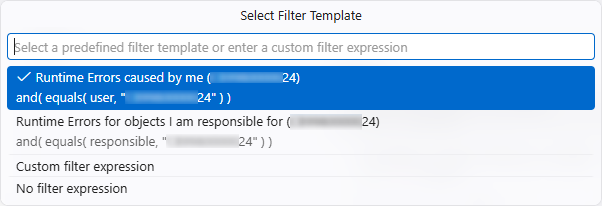
Next, we select a filter template. There are various preconfigured options available: the specific user who triggered the dump, source code for which we are responsible, custom filters that we can define ourselves, or no filters at all if we simply want to see all dumps.
The various dumps in the system are now displayed, starting with the most recent at the top and moving down to the older ones, just as you are accustomed to in Eclipse. If you wish to switch systems, view a different feed, or adjust the filter, you can find these options in the menu. In the screenshot, these are represented by the various icons in the top-right corner.

In the final step, we can click on an individual dump, which opens a new view within VS Code displaying a fairly standard format. We can navigate to various tooltips; the header section contains information regarding the nature of the crash, while the lower section allows for the analysis of additional error messages.

SQL Notebook
A very new feature is the SQL Notebook, which was introduced with this release. You can find it in the Command Palette and start the notebook from there. After starting, you will be asked whether you want to create a new notebook or open an existing one. Initially, the SQL Notebook resembles the SQL console in Eclipse, as you can retrieve and display data using various queries that you execute against the system.

We have now created a new notebook, and here you will already find the basic structure. In the upper part of the form, you see the various actions of objects that you can insert. It's not just a single query that's possible here; you can insert several queries, which you can then run either all at once or individually. ABAP SQL has already been selected as the compiler. You can see this in the upper right corner. The gray box is our actual action. A code block has already been created here. In the lower part, you'll find various actions, such as checking if the syntax is correct, changing the maximum number of return rows, selecting the system on which the query should run, and choosing the language version. This will be relevant later.
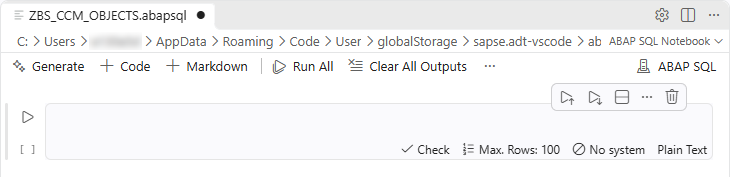
Let's now create a query manually by typing a SELECT statement. You can choose to use the INTO clause or not. We'll optionally test this; otherwise, you can specify a normal SELECT statement. In this case, only ABAP SQL works. You must select this in the bottom right corner, or you will receive an error message instead. Next, we select the system where we will run the SELECT statement, and we can use the check to validate whether the SQL command is correct.

When executed, the data from the backend will be selected and displayed in a formatted manner directly below our code block. Here we see the different columns and headings that we receive from the database, and we also have additional options, such as searching within the output.

Another special feature is the generation of SELECT statements via LLM. You'll find the "Generate" button at the top. This opens a prompt window in the code block. In this prompt window, you can then enter your SELECT statements in natural language. Here we want to read from our Z-table, count the data, group it, and output it, so that the SELECT statement isn't so simple.

As a result of the prompt, the SELECT statement is written directly into the code block, and we can confirm via the checkbox whether we are satisfied with it, accept the suggested SELECT statement, and execute the selection. Here again, it is important to select the system and the correct syntax for it. As a result, we then obtain the number of objects clustered by provider ID and package.

This means that for complex SQL statements you don't always have to type everything by hand or search for it yourself; instead, you simply specify which tables you want and which data should be linked together, and you can then output this information. In addition, this code block is a second SELECT statement, meaning that an SQL notebook can contain multiple SQL queries that you can save and later call up for reuse.
Conclusion
This release actually included several more features than we've shown today. However, we wanted to take a look at some of the new things in the system and present them to you. Overall, the team is on the right track. This is not a simple 1:1 migration of what exists in Eclipse; instead, views and items are reimagined and, as seen in the SQL Notebook, optimized for easier access.
Further information:
SAP Help - Working with the SQL Notebook
SAP Help - ABAP Feeds