ABAP Tools - VS Code (Quick Start)
The ABAP Development Tools for VS Code are now available, and in this short guide we'll look at everything you need to get started.

Table of contents
In this article, we'll look at installing and using Visual Studio Code in the context of ABAP. The plugin has now been released and is officially available, so we can take a first look.
Introduction
The ABAP Development Tools were initially only available for Eclipse and were developed as a plugin there for the past few years. Last year, it was announced that an extension for VS Code would also be available. This was released yesterday, May 28th. The fundamental architecture was redesigned, and ABAP is now available as a language server. In addition to the language server, you'll also find an integrated ABAP MCP server. This was also the reason why the ABAP Development Tools took so long to update for Eclipse in the last update, because the underlying architecture changed significantly.
With VS Code, it is now possible to perform the complete full-stack development of RAP services via the UI in an IDE. The initial version primarily supports the latest artifacts for a full-stack scenario. Further artifacts will be made available with the next releases, and the same version will be rolled out gradually.
Installation
Let's start by installing the tool and then the corresponding plugins so we can begin development.
VS Code
The first step is to install VS Code on your computer. You can do this using the official website, where you can download and install the client. If you are working on a corporate network or do not have administrator rights on your computer, you may need to have the software provided to you by your administrator. Basically, you need the editor to install the plugin at all. The editor is not from SAP, therefore no maintenance is provided.

When you open the IDE for the first time, you will always see the same layout. On the left side, you will find the menu with various tools available in your development environment. Depending on the installed plugins, more or fewer icons may be displayed here.
At the top, you will find the actual command palette. Here you enter commands that trigger certain actions in your IDE. Depending on the plugin, various commands will also be available there. In the lower, large main area are the various editors, which can be opened later. The layout here is initially quite similar to an Eclipse installation, except that this IDE loads significantly faster.
Plugin
You can open the Extensions menu via the sidebar. There you can search for various extensions, but you can also see all extensions already installed in your IDE. We will now search for "ABAP Development Tools" and should find various ABAP plugins. The official SAP plugin, which currently has over 500 installations, is listed at the very top of the screenshot. You can start the installation in your IDE and make the plugin available via the Install button.

Light Theme
Since we are fans of light designs and don't like dark themes as much because of the contrast, we may need to change the theme first if the IDE automatically starts in dark mode. To do this, move the cursor to the Command Palette and search for "Preferences: Color Theme". The greater-than sign plays an important role here, as it allows you to start the various commands. Then go to this menu item to choose between the different themes. There you can choose between different dark and light themes and customize them to your needs.

Connecting a System
The next important point is how we connect to an SAP system to begin our work. If you read the information in the plugin, you will already get some initial clues about how connecting to the system works. Let's go through this chapter step by step and connect to a first system.
Connecting
To do this, we first need to connect to the system by creating a new connection, or in this case, a destination, in our IDE. Under the ABAP section, you'll find the command "New Destination" (see screenshot). Select this to start the wizard.

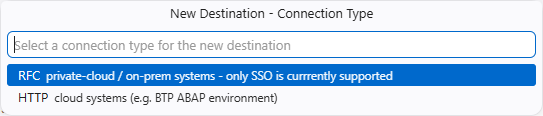
In the next step, we need to decide whether to connect to a cloud system, in this case via an HTTP configuration, or to connect to an on-premise system via our Launchpad configuration. For an on-premise system, various data such as system ID, user, and language will be requested before connecting. However, currently only SSO is supported for on-premise login. In our example, we connect to an ABAP environment and select "HTTP" for the connection.
Here you enter the URL of the actual system. The system then knows which backend to connect to and which configuration parameters to use.

In the second step, the wizard asks you which alias you want to use. This alias will later be displayed as the system name and is also integrated into your folder structure. Therefore, you should choose a suitable name to easily find the system later, especially if you are working with many systems.

Integrate
Now that we have established the connection, we can integrate the system or our first package into the workspace. For this, we need a new command. If you search for "ABAP Add" in the Command Palette, you will find three different options for adding ABAP objects to your workspace. The workspace is the area in which you work. For example, you can decide whether you want to add a destination, in which case the entire system will be added. Or you might consider adding a package, which is similar to Eclipse's Favorites feature, where you add a specific package with all its sub-objects to your workspace.
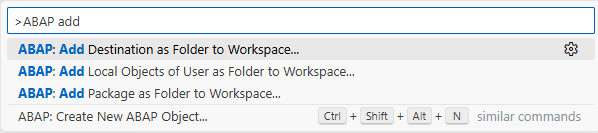
In this case, we want to add a package. After selecting this command, the wizard asks us which system (destination) we want to do this for, and we must authenticate in the next step. Since we are working against an ABAP environment, authentication takes place in the browser. After authentication is complete, we can search for the packages we want to add. In this case, we are searching for our demo package. If it is located on the system, we will receive all suggestions containing the demo package. If we select the package, we can then assign a name that will be added to the workspace, in this case, the package name plus System.

In this example, we have added our package once and the complete system once. You will now find both entries in the workspace on the left side of your editor. Currently, the exclamation marks indicate that you are not connected to the system. This means that when you open the folders, you won't see anything initially; you first need to log in to the system.

Log in
To start the login process, right-click on the entry and select "Logon to Destination". This will restart the wizard, and we can then complete the login process. In this case, your browser will open, and you will log in, or if you are already logged in, you will be automatically authenticated. Once we've configured a system here and performed RFC authentication, single sign-on will occur, and we should be automatically logged in.

We can now expand the folder structure and should see all the subpackages included in our demo package. Since there are so many packages, this is just a selection of some of our open-source projects that we've implemented in the past. You can find the other demo packages here.

Development
Let's now run some basic functions. In this exercise, we will create a new class, implement a first step, write a unit test, and then run both to explore different approaches.
Class
To create a new class in the system, we need to use the Command Palette again. There, we look for the command "Create ABAP Repository Object." This will start the wizard for creating a new object in the system.

First, we need to select the object type. The various supported objects are displayed here. Since we want to select and create a new class, we can either search for "class" or select from the list of objects to start the appropriate wizard for the class.

Here, we are again guided through the various steps to define a class. We are asked in which package and on which system we want to create the object. We are also asked for a description of whether we want to define a superclass or an interface. Finally, there's another intermediate step: if we're working in a package that requires a transport, the system will also ask us whether we want to create a new transport, or suggest transports that we already have.

The class is then opened directly in the editor. The upper part shows the path from the system through the various libraries. The editor contains the actual generated code for the class. Now we can start working on the class directly.

Edit
Let's first extend the class to implement an interface for the Class Runner. We specify the interface and start with its name. As always, CTRL + SPACEBAR starts the wizard, which suggests objects we can use here. This gives us an easy way to find the interface name, even if we don't know it 100%. This function is similar to that in the ABAP Development Tools for Eclipse.

Currently, there doesn't seem to be a simple way to automatically generate the method implementation from the method definition. Here, we have to do some manual work, or rather, "Joule for Developers," which is active on this system, helps us by suggesting code. This allows us to relatively easily implement an additional method, where dummy text is already suggested. Joule also helps us with the method implementation by suggesting code that calls the method and outputs the result to the console.
CLASS zcl_bs_demo_vscode DEFINITION
  PUBLIC
  FINAL
  CREATE PUBLIC .

  PUBLIC SECTION.
    INTERFACES: if_oo_adt_classrun.
  PROTECTED SECTION.
  PRIVATE SECTION.
    METHODS get_hardcoded_text
      RETURNING VALUE(result) TYPE string.
ENDCLASS.


CLASS zcl_bs_demo_vscode IMPLEMENTATION.
  METHOD if_oo_adt_classrun~main.
    out->write( get_hardcoded_text( ) ).
  ENDMETHOD.

  METHOD get_hardcoded_text.
    result = 'Hello World'.
  ENDMETHOD.
ENDCLASS.
Activate
Now that we have completed our implementation, we want to activate the class's code. There are currently three options for this. Above the editor, you will find an icon for activating the current object. In the footer, you will find an icon to activate all inactive objects, or you can use the standard combination Ctrl + F3 to start the activation.

Run
To start the class as a console application, you have two options. Either you right-click on the source code and find in the menu; The execution option "Run ABAP Application (Console)" or you press F5 in the object to start the class. Without a debugger, output is displayed in the console here in the lower part of our IDE.

Debugging
Next, we want to start the debugger in our IDE. We can set a breakpoint again and simply need to go to the line. A corresponding point will be set, and we will receive the information that we can activate a breakpoint here. We'll set this so we can start debugging right away.

In the next step, we can restart the application with F5 and should land directly in debugging. The debugging perspective here is slightly different than in other IDEs like Eclipse. On the left, you'll find information about the various variables, watchpoints, and the call stack. At the very bottom are the various breakpoints we've set. We see our main code and the current point where we're debugging, and at the top, you'll find the menu to cycle through the points. This corresponds to the debugging options we know from Eclipse, although the keyboard shortcuts are slightly different here. You can find information about the standard keyboard shortcuts by hovering your mouse over them.

Unit Test
To write a unit test for our class, we first need to access the test include. You won't find different tabs under the editor; instead, you need to look in the tree on the left. There, we'll find the various includes below the class and need to select the test include.

We didn't find a template function for creating the test class in the first step. Therefore, we'll implement the code manually. J4D was helpful again here, providing suggestions on what to test, how to test it, and how to use it. In the end, our test class looks like this in the system:
CLASS ltc_test DEFINITION FINAL
  FOR TESTING
  DURATION SHORT
  RISK LEVEL HARMLESS.

  PRIVATE SECTION.
    METHODS:
      first_test FOR TESTING.
ENDCLASS.

CLASS zcl_bs_demo_vscode DEFINITION LOCAL FRIENDS ltc_test.

CLASS ltc_test IMPLEMENTATION.
  METHOD first_test.
    DATA(cut) = NEW zcl_bs_demo_vscode( ).

    DATA(result) = cut->get_hardcoded_text( ).

    cl_abap_unit_assert=>assert_equals( exp = 'Hello World' act = result ).
  ENDMETHOD.
ENDCLASS.
Finally, we want to run the unit test. We looked for an option and first tried right-clicking in the tree. There's also a "Run Tests" option that we can execute. Additionally, we tried using the Command Palette and found various commands there, for example, to run the unit test or the ABAP Test Cockpit. This option then starts our current open unit test.

We then receive the result of the unit test. Firstly, as a summary in the console, but we also find a corresponding test viewer on the left, which opens. If we expand this, we find the one test method we have that ran successfully and how long it took. Basically, you'll find further options to repeat the test.

Conclusion
The ABAP Development Tools in VS Code support an initial use case in the form of the latest objects in ABAP development. We can already see the potential of the tool, especially in connection with Agentic AI, which was announced by SAP and is already available through other coding agents. This article should primarily give you a quick introduction to the topic, how to get the IDE running, and how to take your first steps with it.
Interactive:
YouTube - Software-Heroes