ABAP Tools - VS Code (Agentic AI)
ABAP Development Tools for VS Code is here, so how do you get started with Agentic AI? Let's take a look at a basic configuration and how to get it running.

Table of contents
In this article, we'll look at how to activate and configure Agentic AI for VS Code to generate our first applications and classes.
Introduction
One of the biggest promises of the ABAP Development Tools for Visual Studio Code was the use of Agentic AI and AI Agents to create applications within the system. In the last article, we described how to install the Plugin and take our first steps with it in the system. Therefore, in this article, we'll take a closer look at how to configure the MCP server and then, finally, generate our first applications using an AI agent. We will look at the various steps for activating the MCP server and other settings.
Architecture
Therefore, it might be worthwhile to take a brief look at the architecture of the ABAP Development Tools and what it looks like behind the scenes. The team at SAP has redesigned the architecture and now provides a Java-based language server. The ABAP Development Tools run on this language server, which in turn establishes the interface to the actual system. This makes it possible to connect a wide variety of IDEs to the system without having to create a new implementation each time, at least as far as the backend code is concerned. When you start VS Code, a language server starts simultaneously in the background, and you can view it in the processes.

MCP Server
In order for our agent to access the various tools, such as opening objects, creating transports, or retrieving information from the system, it needs certain functions. For this, we need to provide an MCP server that offers all these different features. The MCP server is now also delivered along with the language server. It runs directly on the language server and can be accessed through it. However, the MCP server is deactivated by default in the delivery state, so we have to activate it via VS Code as a first step. To do this, we open the settings via "File -> Preferences -> Settings" or the shortcut combination "CTRL + ," (comma) to open the settings in VS Code.

There you will find the Extensions section and can open the ABAP Development Tools. Scroll down and you'll find three settings for the MCP server:
- First, you can activate the MCP server.
- Second, you can change the port.
- And third, you can use a security token.

You can use the security token if, for example, you want to use Claude Code or Codex and also integrate the MCP server. You need the security token to connect to the server. This means you're not necessarily tied to VS Code, but can also use other IDEs.
Configuration
For configuring the AI, we use the Copilot plugin, which is automatically included with VS Code and is already integrated into the IDE. For the AI, we use a Gemini Pro subscription, which we also use privately. One advantage here is that Copilot is constantly expanding and we can also use models that are not hosted by Microsoft.
Plugin
If the plugin is currently closed, you will find a button in the upper section of the taskbar to display the sidebar. The Copilot chat should already be available within this sidebar. However, you may find that you are not yet signed in; in this case, the system will prompt you to sign in to Copilot first. Alternatively, you can also directly configure a Large Language Model there.

To do this, you need to click on GitHub Copilot in the lower section. A pop-up will appear, allowing you to activate the AI features in the IDE. Clicking the button will log you into Copilot, where you can choose which provider you want to log in with. We'll log in normally with our GitHub account. The login process usually takes place in the browser, and you will then be redirected back to the IDE, where Copilot will finally be activated.

Hint: Signing in with GitHub is no longer strictly necessary, you can now directly use an API key to integrate models (Gemini, Claude, etc.). This was implemented in the latest version.
Gemini (LLM)
Once everything is set up, you can click to select different LLMs. Here we want to add a Gemini Pro model. To do this, click on the gear icon in the back section under Models to start the configuration dialog.

In the dialog, click on the blue "Add Models..." button to add your own model. Here, we select Google as the provider. The dialog then asks you to name the category, namely "Google," and prompts you for an API key. You can generate this API key for your LLM using Google AI Studio. You can also use your own Large Language Model here; You only need the API key to connect to the model.

After entering the API key, all models from Google should load, allowing us to select the appropriate model. In this case, we are using the Gemini 3.1 Pro Preview model.

MCP Tools
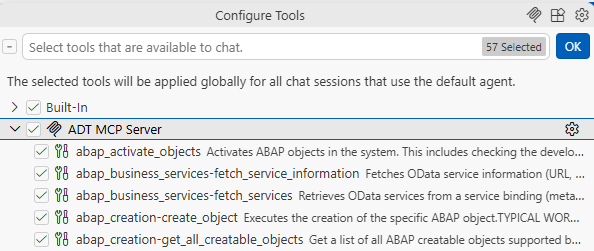
Although we have activated the MCP server, we now need to activate the MCP tools. Here, we can decide whether to enable all tools or only specific ones. To do this, click on the configuration in Copilot to view all settings.

In the upper area, a menu opens where we see various built-in tools, as well as our ADT-MCP server. There, we can directly check a box at the MCP server level to activate all tools at once. Alternatively, you can choose not to make certain tools available to LLM. The decision is entirely yours.
agent.md
Next, we want to create our own AI agent, which will handle the development for us. We need an agent for Agentic AI to function at all. This agent will then take care of coding, gathering information, code reviews, or other tasks. Basically, you can always create multiple agents, each specializing in different tasks. To do this, click on Agent Mode in the Copilot plugin. There you will find a setting to create your own agent.
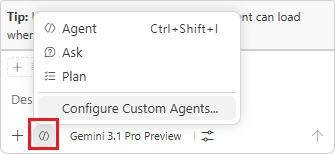
In the Command Palette, select "Create New Custom Agent" to create a new agent. In the next step, you must choose where the agent's actual configuration file (agent.md) will be stored. Several spaces are available, such as Copilot Agents, where the agent is made available directly for GitHub Copilot; Claude Agents, where it is available for Claude; or User Data, where the file is stored globally in VS Code, as well as other specific use cases. In this case, we select Copilot Agents (~/.copilot/agents) to make the new agent available to our copilot.

At the end, we get our agent.md file, which we can now customize to specify the skills and tools, as well as enter other qualifications that the agent should consider when performing the task, for example, where they get their information from and what specific procedure they use.
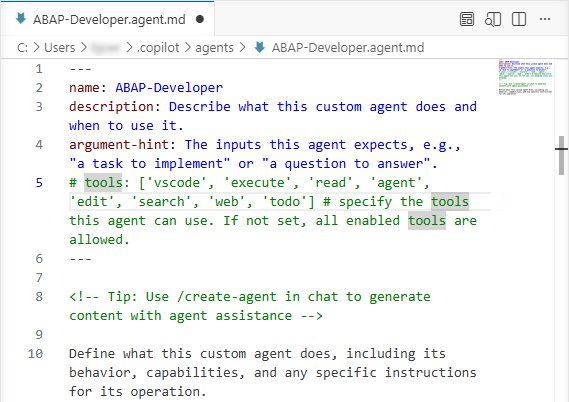
If you are unsure what to use, SAP offers a small template made available through the official SAP Help documentation. This provides you with initial settings for your agent, which you can then further refine by adding additional tools and instructions. Finally, we can select the agent and view it within Copilot.

instructions.md
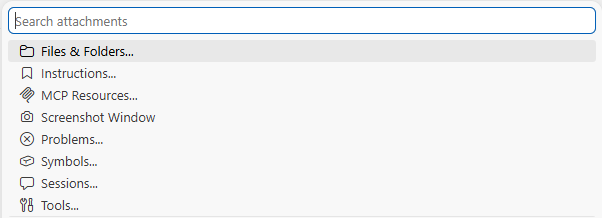
Using the plus button, you can add further tools or MCP servers if you need them. You can also create an instruction file. In this instruction file, you can store further instructions, such as that the agent should apply Clean ABAP or adhere to certain naming conventions when creating specific objects (like CDS views or RAP business objects) in the system. These instructions are particularly helpful if you want to comply with standards without having to manually adjust them each time. In this case, we'll leave the instructions empty for now. Basically, you should fill it up yourself and make it available to the agent.
Test
For our test, we create a package in the system under ZBS_DEMO_AI. We then integrate this into our tools so that we can work with AI directly within this package.

Let's now give our AI agent its first task: It should generate a class that reads our RSS feed at runtime and parses the result into an internal table. The result should ultimately be displayed in the console so we can directly see which items are currently available. We will specify a list of tasks to be performed.
1. Generate an executable class in package ZBS_DEMO_AI in System CloudDEV, that read the content of https://software-heroes.com/user_content/content/feed_en.rss
2. Parse the articles into an internal table
3. Output the table to the console
The agent repeatedly asks us whether it should create certain files, whether we want to use a specific transport request, or whether it may use certain MCP tools. This is generally standard behavior, especially at the beginning, as the system first checks which tools the agent actually wants to use. Otherwise, it's relatively easy to follow the individual steps it takes and the objects it generates.

We can also look at the code of the created class from time to time to check the current status. We always have the option to accept or discard the changes using Keep or Discard. Finally, we receive a complete overview of which objects and information the agent has generated.

Here you will find the code that the LLM generated in the system and iteratively developed. All the code has been activated, meaning there were no more errors, and the various errors in the iteration were corrected by the LLM. What is noticeable is that Hungarian notation is used. Since we did not provide any instructions beforehand to avoid using it, the LLM automatically assumed that we would use Hungarian notation by default when generating code.
CLASS zcl_bs_demo_ai_rss_reader DEFINITION
  PUBLIC
  FINAL
  CREATE PUBLIC .

  PUBLIC SECTION.
    INTERFACES if_oo_adt_classrun.
    TYPES:
      BEGIN OF ty_article,
        title       TYPE string,
        link        TYPE string,
        description TYPE string,
        pub_date    TYPE string,
      END OF ty_article,
      tt_articles TYPE STANDARD TABLE OF ty_article WITH DEFAULT KEY.

    METHODS get_articles
      RETURNING VALUE(rt_articles) TYPE tt_articles.
  PROTECTED SECTION.
  PRIVATE SECTION.
ENDCLASS.


CLASS zcl_bs_demo_ai_rss_reader IMPLEMENTATION.
  METHOD get_articles.
    DATA ls_article TYPE ty_article.

    TRY.
        DATA(lo_destination) = cl_http_destination_provider=>create_by_url( 'https://software-heroes.com/user_content/content/feed_en.rss' ).
        DATA(lo_client) = cl_web_http_client_manager=>create_by_http_destination( lo_destination ).

        DATA(lo_request) = lo_client->get_http_request( ).
        DATA(lo_response) = lo_client->execute( i_method = if_web_http_client=>get ).

        DATA(lv_xml_xstring) = lo_response->get_binary( ).

        DATA(lo_ixml) = cl_ixml_core=>create( ).
        DATA(lo_stream_factory) = lo_ixml->create_stream_factory( ).
        DATA(lo_istream) = lo_stream_factory->create_istream_xstring( lv_xml_xstring ).
        DATA(lo_document) = lo_ixml->create_document( ).
        DATA(lo_parser) = lo_ixml->create_parser(
                            stream_factory = lo_stream_factory
                            istream        = lo_istream
                            document       = lo_document ).

        IF lo_parser->parse( ) = 0.
          DATA(lo_items) = lo_document->get_elements_by_tag_name( name = 'item' ).
          DATA(lo_iterator) = lo_items->create_iterator( ).
          DATA(lo_node) = lo_iterator->get_next( ).

          WHILE lo_node IS BOUND.
            CLEAR ls_article.
            DATA(lo_element) = CAST if_ixml_element( lo_node ).

            DATA(lo_children) = lo_element->get_children( ).
            DATA(lo_child_iterator) = lo_children->create_iterator( ).
            DATA(lo_child_node) = lo_child_iterator->get_next( ).

            WHILE lo_child_node IS BOUND.
              DATA(lv_name) = lo_child_node->get_name( ).
              DATA(lv_value) = lo_child_node->get_value( ).

              CASE lv_name.
                WHEN 'title'.
                  ls_article-title = lv_value.
                WHEN 'link'.
                  ls_article-link = lv_value.
                WHEN 'description'.
                  ls_article-description = lv_value.
                WHEN 'pubDate'.
                  ls_article-pub_date = lv_value.
              ENDCASE.
              lo_child_node = lo_child_iterator->get_next( ).
            ENDWHILE.

            APPEND ls_article TO rt_articles.
            lo_node = lo_iterator->get_next( ).
          ENDWHILE.
        ENDIF.

      CATCH cx_root INTO DATA(lx_error).
        " Handle exception or return empty table
    ENDTRY.
  ENDMETHOD.

  METHOD if_oo_adt_classrun~main.
    DATA(lt_articles) = get_articles( ).
    out->write( lt_articles ).
  ENDMETHOD.
ENDCLASS.
Here is the generated test code that LLM produced. This gives us a test class with a test method that executes the actual method, retrieves the articles, and then checks if they are not empty. Basically, this is a simple test, but fully functional for our class.
*"* use this source file for your ABAP unit test classes
CLASS ltc_rss_reader DEFINITION FOR TESTING RISK LEVEL HARMLESS DURATION SHORT.
  PRIVATE SECTION.
    METHODS:
      test_get_articles FOR TESTING.
ENDCLASS.

CLASS ltc_rss_reader IMPLEMENTATION.
  METHOD test_get_articles.
    DATA(lo_cut) = NEW zcl_bs_demo_ai_rss_reader( ).
    DATA(lt_articles) = lo_cut->get_articles( ).

    " Assert that articles are returned
    cl_abap_unit_assert=>assert_not_initial(
      act = lt_articles
      msg = 'Articles should not be empty' ).
  ENDMETHOD.
ENDCLASS.
The complete code has been generated and has not been modified by us. We have only performed a code review of the function here. Basically, we can now make adjustments via the LLM, remove the Hungarian notation, or revise the style. We are also using the debugger to check if the parsing worked. The articles are now present in the internal table:

Conclusion
If you are not already a professional in the field of Agentic AI or AI, you might find the setup a bit more difficult. However, if you've been using it for a while and are familiar with the prerequisites and the necessary configuration, then activating Agentic AI for ABAP should be relatively easy. Have fun trying it out.