Fiori for ABAP - Rich Text Editor
Do you want to display long text in your RAP application as HTML and allow users to maintain it? There's no native ABAP function for this, but it's quite easy to extend.

Table of contents
In this article, we'll look at integrating a rich text editor into our application and how you can easily implement this using the Flexible Programming Model.
Introduction
Currently, we've extended our Sales App using guided development and individual customizations (page map). So far, we haven't encountered any major extensions or deviations from the Fiori Elements framework. Therefore, in this article, we want to examine how to customize an application whose requirements go beyond the standard Fiori Elements functionality. For this, we want to use the Flexible Programming Model, a convenient way to extend Fiori Elements applications.
Looking at our application, we currently find an information section under the "Differences" area. This includes a comment field, which has been defined as a string field in the database. Currently, the field is relatively small on the user interface; we can barely enter any text, let alone apply any formatting. However, this field is actually intended to prepare information so that it can later be sent as an email or made available to colleagues in a better structured way.

Therefore, we want to replace the simple text field with a rich text editor. This offers us significantly more formatting options and automatically returns the appropriate text as an HTML template.
Development Portal
The SAP Fiori Development Portal is the new central access point for the Flexible Programming Model and the extension of Fiori Elements applications. The portal provides extensive information on how extensions are implemented, which building blocks exist, and how to use the various extension points effectively. Furthermore, there are additional flexible options for testing specific features and adjusting settings. Most models here refer to native customization via XML fragments, CAP, and RAP, although RAP currently still has some gaps in its documentation. The major advantage of the Development Portal is that you can directly see the available features and try out many functions live before integrating them into your own application. Therefore, this is a must-have resource that you should definitely include in your portfolio.
Terms
If you haven't yet delved too deeply into this topic, here are some terms explained in a concise form.
Flexible Programming Model
This model describes the possibilities for implementing extensions in applications based on OData Services Version V4. Certain extension points are available that you can use to implement custom logic or UI elements.
Extension
Basically, Fiori Elements is relatively strict in how applications are generated and how the templates look. Therefore, there needs to be some variation between a freestyle application and a Fiori Elements application, namely to allow for custom nuances and extensions without completely abandoning Fiori Elements and going directly into freestyle development. Freestyle development can be significantly more expensive in terms of creation and maintenance.
Building Blocks
If you need a component that you want to reuse, such as the filter bar, which consists of various elements, or the table that is coupled with a filter bar, then there are so-called building blocks. These are pre-built UI components that you can easily use in your development. They allow you to build your application easily and quickly without having to delve deeply into complex freestyle development.
Preparation
Before we move on to the direct implementation of the rich text editors, we need to create an area in which we can move freely and make extensions to the framework. To do this, we extend the Object Page and create a Custom Section where we can then make further implementations.
Page Map
To do this, we start the Page Map of our application. Further details about the Page Map and the exact access method can be found in the corresponding article.

Next, we navigate from the Page Map to the Object Page of our main entity, Sales, via the pencil icon, as this is where we want to make the adjustments.

In the next step, we look at the structure of our Object Page. At the top, we find the header; all information such as icons and headings are defined here. In the middle section, we have the various sections. These are the areas in which our fields and information are grouped via Facets. At the very bottom is the footer, which is usually responsible for actions such as saving or discarding a draft. Therefore, we next navigate to the Sections area. There, we click on the plus icon and select "Add Custom Section" to create our own section.

In the popup window, we now enter all the information we need for the custom section. First, we enter a title, which will later appear as the heading above the section. Secondly, we define a new fragment, as no fragments currently exist. Fragments are small UI components that we can insert into the framework. We then assign a name, as a file will be created for this purpose, and define a corresponding anchor. In this case, we want to insert the element after the differences; therefore, we select the ID as the anchor element and set the placement to "After". We don't need an event handler in this case, as we don't need to implement any JavaScript code.

Result
As a result, we receive various adjustments in our Fiori application. You will now find the newly created Custom Section in the Page Map. In parallel, a new folder for extensions (ext) and a section called Fragments were created. Our file was created there, and dummy code was implemented.

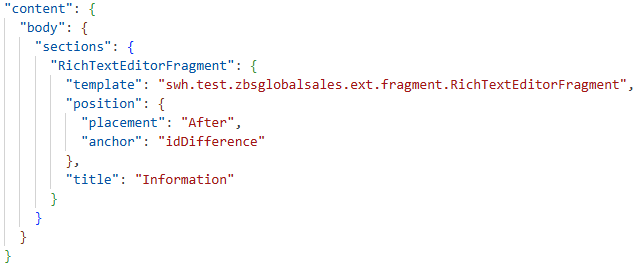
Technically, the manifest.json file was extended in the background, specifically the corresponding object page, where we also inserted the extension. There you will find new elements under the object page, such as the body with its sections. We also find the definition of our fragment, i.e., where the fragment is defined, and its position. The element should be inserted after the idDifference.
Display
Let's now look at the application in preview mode. The new section is now located above our previous information and below the differences. The dummy code has also already been implemented; that is, we can already see the embedded text of the fragment in the application.

Rich Text Editor
Rich text editors belong to the WYSIWYG (What You See Is What You Get) concept. This means that the user edits and formats the text directly in the interface. Exactly what he sees there, for example, in the formatting, images, or colors he inserts, is exactly what he gets in the final result.
Structure
Let's look at two different concepts below: on the one hand, the Building Blocks, which belong to the Flexible Programming Model, and on the other hand, the Freestyle components, which we can also use. Basically, the fragment consists of XML elements. We have a fragment definition that is given around it; we must not change this and must keep it as is. This will be included in the page later; however, we can change the content within the fragment definition to insert our customized controls.
If we want to use a field from the OData service in XML, we access the main service and the corresponding field using curly braces. In the case of our comment, we therefore use "{SaleComment}" to bind the field from the service.
Variant - Building Block
Further information about the Building Block and how to configure it can be found in the SAP Fiori Development Portal. Essentially, this consists of a simple macro element, which we can then integrate. Once we have integrated the macro on our page, we need to define the field we want to work with in the OData service. In this case, we have the field "SaleComment" in the OData service model. We also assign a unique ID for the editor.
<core:FragmentDefinition
    xmlns:core="sap.ui.core"
    xmlns="sap.m"
    xmlns:macros="sap.fe.macros"
>

    <macros:RichTextEditor
        value="{SaleComment}"
        id="idCommentEditor"
        excludeDefaultPlugins="false"
    />
</core:FragmentDefinition>
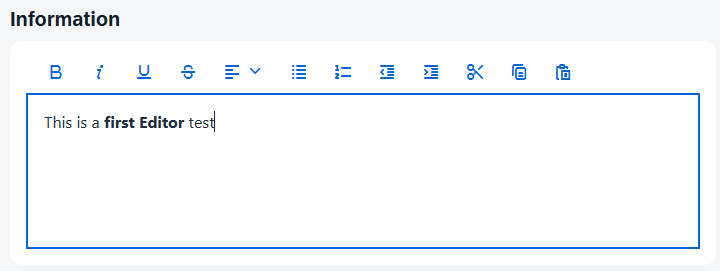
Let's take a look at a preview of our application. The text editor is now integrated. We have the formatting options at the top, and we can enter text and display it formatted. In the Development Portal, you'll also find, for example, a restriction on the various buttons and actions that are possible in the control. The documentation provides further information on how, for example, only certain elements can be displayed to the user via a ButtonGroup. Various settings are possible on the control to implement it simply.
Variant - Freestyle Component
If the component doesn't offer enough functionality, or if you want to use inline images, for example, this might not currently work with the macro. Therefore, you can also consider integrating the Freestyle Editor. This editor is not from Fiori Elements, but from the SAPUI5 portfolio. However, you need to extend the namespace for this. You extend this in the fragment above (xmlns:rte="sap.ui.richtexteditor") to include the editor. Next, we'll introduce the editor and activate specific functions that we'll need for editing later. You can also add an HTML class and adjust the editor's size, which is what we'll do in this case.
<core:FragmentDefinition
    xmlns:core="sap.ui.core"
    xmlns="sap.m"
    xmlns:macros="sap.fe.macros"
    xmlns:rte="sap.ui.richtexteditor"
>
    <rte:RichTextEditor
        id="idCommentEditorRT"
        class="sapUiSmallMarginBeginEnd"
        width="98%"
        height="500px"
        value="{SaleComment}"
        sanitizeValue="false"
        customToolbar="true"
        showGroupFont="true"
        showGroupLink="true"
        showGroupInsert="true"
        editable="{ui>/isEditable}"
    />
</core:FragmentDefinition>
As a special feature, we also need to define the editability status in this case. To do this, we bind an element from the local UI model. There, we find the attribute "isEditable", which we copy into the settings. This means that the editor will automatically open when the edit button is clicked, and when we leave the draft, for example, the field will switch back to display. We don't need to worry about these status changes in Fiori Elements; the framework handles this for us, and we can simply copy the properties from the corresponding model. The curly braces access the attributes and models. In this case, we use the model "ui>" and access the attribute "/isEditable".
{ui>/isEditable}
Once we have integrated and configured the editor and re-bound the corresponding field to the OData service, we can preview the editor. At first glance, it looks the same. However, we can see at a glance that we have more text formatting options, such as different fonts, sizes, and other settings.

Comparison
There are fundamental differences in the use of the two different controls. With the macro, we have the standard Fiori Elements functionality and relatively easy integration into our Fiori application. Furthermore, we can currently link two different states to the element, which increases flexibility without much programming effort. The freestyle editor we can use here has the advantage that we can, for example, deactivate the sanitizer, allowing us to store image content within the string. We can also display different groups to make the various tools and features we use visible. On the other hand, the configuration effort for the freestyle element is somewhat greater, as we also have to consider the edit flow, which is provided by default. Therefore, it makes sense to consider which of the two elements you actually need in your specific case. The macro is the simplest and most standardized way and can be implemented without much configuration effort.
Cleanup
Let's adjust a few more things in the Sales App. In this chapter, we'll look at two more points on the ABAP side.
Conversion
Currently, there's one more thing we need to correct in our application. When you save the texts, you'll notice that they are converted to uppercase letters. Here, we need to adjust the domain properties to activate case sensitivity in the element. This field is actually a string field, but the standard handles the conversion to uppercase letters because we haven't set the corresponding property. To do this, you need to go to the ABAP project and open the domain ZBS_DEMO_SA_COMMENT. There you set the flag for case sensitivity, save, and reactivate the element.

This makes case sensitivity work in our application, and we can save the text as we formatted it without the letters being automatically converted again.
Facet
In the second part, we currently have one too many facets defined. These are the information we display in the UI. Since we have now introduced a new custom section with its own editor, we can remove the field and the actual section from the UI. To do this, we can delete the facet in the Metadata Extension and deactivate the actual field in the UI. We will comment out the relevant components in the Metadata Extension so that we can understand them later.
//    {
//      id: 'idInformation',
//      label: 'Information',
//      position: 30,
//      type: #IDENTIFICATION_REFERENCE,
//      targetQualifier: 'INFO'
//    },

...

//  @UI.identification: [ { position: 100 , qualifier: 'INFO' } ]
//  @EndUserText.label: 'Comment'
  @UI.hidden: true
  SaleComment;
This is also the reason why we attached the Custom Section to the Facet. We need a visible element for the Custom Section to reference. If we had bound it to a piece of information and later deleted it, the element and its context would have been lost. Therefore, it is important to keep this section (Differences) available in the future.
Complete Example
You can find the saved resources for our application in our GitHub repository. This will allow you to track all future adjustments to the Fiori app or use the resources for a deployment. The current changes can be found in this Commit. The changes in ABAP can be found in this Commit in the corresponding RAP GitHub repository.
Conclusion
In this article we looked at how to extend an existing Fiori Elements application with the Flexible Programming Model, create a custom section, and define a custom control within it, which we then bind to our service to modify content. We examined various scenarios for different controls and compared them.