RAP - Mixed Content
How do we actually get different content into the same column in the List Report? Let's look at a practical example using our Sales App.

Table of contents
In this article, we group multiple fields in a column and dynamically hide elements we no longer want to see.
Introduction
In our Sales App, we also have a section for variances. Here, we want to record how much we deviate from the actual value of the sale. We have a fixed amount available, but also a field for a percentage variance. We would like to display one of these two pieces of information in the list report without taking up too much space with four columns. To do this, we want to group and display the different columns.

Annotation
First, let's extend our metadata extension ZBS_C_SASale so that we can group the fields in the list report into a single column. We define a new "UI.lineItem" for each column, which ensures that the field is displayed as its own column. We then set the type to "AS_FIELDGROUP" to create a group and define an ID using "valueQualifier". All fields that should now be in the same column are given a "UI.fieldGroup" with the appropriate qualifier. However, it must also be defined on the same field that we have already marked with the LineItem. For the two columns, we now get the following additional annotations:
@UI.lineItem: [ { position: 55, type: #AS_FIELDGROUP, valueQualifier: 'DIFF_NUM', label: 'Difference' } ]
@UI.fieldGroup: [{ qualifier: 'DIFF_NUM' }]
DifferenceAmount;

@UI.lineItem: [ { position: 57, type: #AS_FIELDGROUP, valueQualifier: 'DIFF_UNIT', label: 'Difference (Unit)' } ]
@UI.fieldGroup: [{ qualifier: 'DIFF_UNIT' }]
DifferenceCurrency;

@UI.fieldGroup: [{ qualifier: 'DIFF_NUM' }]
DifferenceQuantity;

@UI.fieldGroup: [{ qualifier: 'DIFF_UNIT' }]
DifferenceUnit;
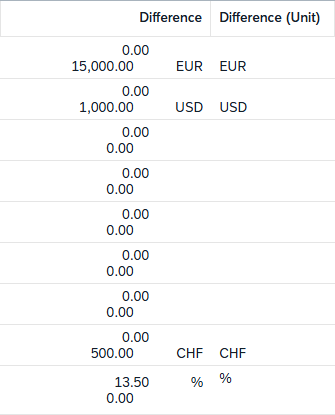
If we reload our list and the list report, we get new columns with corresponding headings, and the fields are displayed one below the other.
Virtual Fields
Currently, the UI doesn't look very appealing; the fields are displayed twice, and we're not really interested in empty information. Therefore, we want to hide this information, which we can easily achieve using virtual fields. Let's define the corresponding virtual fields in our entity ZBS_C_SASale.
        @ObjectModel.virtualElementCalculatedBy: 'ABAP:ZCL_BS_DEMO_RAP_SALES_VE'
virtual isAmountHidden   : abap_boolean,

        @ObjectModel.virtualElementCalculatedBy: 'ABAP:ZCL_BS_DEMO_RAP_SALES_VE'
virtual isQuantityHidden : abap_boolean,
To do this, we still need to implement the derivation logic in the class ZCL_BS_DEMO_RAP_SALES_VE. We include the fields "DifferenceAmount" and "DifferenceQuantity" in the GET_CALCUALTION_INFO method, as these form the basis for the derivation. Finally, we extend the CASE statement in the CALCULATE method to populate the two virtual fields.
WHEN 'ISAMOUNTHIDDEN'.
  original->isAmountHidden = xsdbool( original->DifferenceAmount IS INITIAL ).
WHEN 'ISQUANTITYHIDDEN'.
  original->isQuantityHidden = xsdbool( original->DifferenceQuantity IS INITIAL ).
If the corresponding field is empty, we want to hide this information in the UI. To ensure that the hiding is then applied by the UI, we need to adjust the metadata extension in the last step and add the annotation "hidden" to the elements. The new annotations should look like this.
@UI.lineItem: [ { position: 55, type: #AS_FIELDGROUP, valueQualifier: 'DIFF_NUM', label: 'Difference' } ]
@UI.fieldGroup: [{ qualifier: 'DIFF_NUM', hidden: #(isAmountHidden) }]
DifferenceAmount;

@UI.lineItem: [ { position: 57, type: #AS_FIELDGROUP, valueQualifier: 'DIFF_UNIT', label: 'Difference (Unit)' } ]
@UI.fieldGroup: [{ qualifier: 'DIFF_UNIT', hidden: #(isAmountHidden) }]
DifferenceCurrency;

@UI.fieldGroup: [{ qualifier: 'DIFF_NUM', hidden: #(isQuantityHidden) }]
DifferenceQuantity;

@UI.fieldGroup: [{ qualifier: 'DIFF_UNIT', hidden: #(isQuantityHidden) }]
DifferenceUnit;
Test
For testing the UI, we adjusted the data generator ZCL_BS_DEMO_RAP_SALES_DATA again so that the field information is also populated and we have data for the test. If we reload the UI, the information is now displayed correctly.

The lines in the lower area are empty because neither of the two pieces of information is filled there; accordingly, they are also hidden via the virtual elements. Among the example data, you will find both pieces of information at one point; here it makes sense to use validation to ensure that only one of the two pieces of information is populated. With that, the function is implemented, and we can now take a closer look at the column. If we click on the header, we find the grouped fields again in the overview and can define further settings here, such as the sorting.

Complete Example
You can find the complete example in GitHub in the corresponding package for the Sales App. The changes from this article can be found in this Commit and you can follow the changes, plus the additional information.
Conclusion
With field groups you can do more than just group elements on the object page. You can also use them to group the content in the list report in the different columns. Especially when space is limited, you can provide useful extensions with them.