RAP - Augmentation
In this article, we'll restructure our RAP application's data model and change how we handle text. We'll use augmentation to ensure our data model remains complete.

Table of contents
In this article, we'll look at language handling and use augmentation to add more languages via API.
Introduction
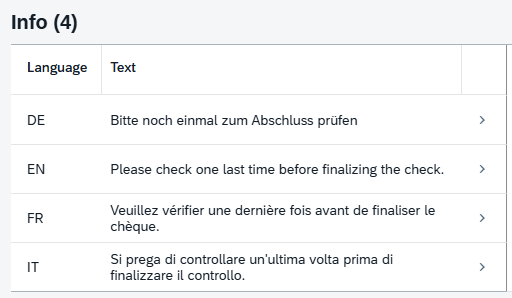
We'll use the created Sales App to make another request. Currently, we have an entity with information attached to our RAP object. This is a field that is simply translated into the various supported languages. Currently, the user should only need to populate the current field and not have to worry about the other languages.
Modification
To implement this requirement, we need to restructure the application slightly. For this, the language key must be included in the data model key.
Table
Since the language key is also a key field and each language should only exist once, we can define the PARENT_UUID and the language key as a unique key. We no longer need the user's own UUID, as this would otherwise allow for the creation of multiple entries in German. The table would then look like this.
define table zbs_sainfo {
  key client      : abap.clnt not null;
  key parent_uuid : sysuuid_x16 not null;
  key language    : spras not null;
  text000         : zbs_demo_sa_text;
}
If you now want to activate the table, you will most likely receive a DDIC message. Since we have changed the key and there are already entries in the table, we need to initiate a table conversion.

Using CTRL + 1, we call up the Quick Fix and receive the corresponding options to adjust the table. Since we can later reuse the entries from our test data, we first delete the existing data using the option "Adjust and activate database table, delete data".

Core Data Service
Since we have adjusted the table, we cannot yet fully activate it, as the data model via Core Data Services also needs to be updated. Otherwise, we will still receive corresponding error messages when activating. To do this, we modify the interface view ZBS_R_SAINFO, remove the old key field, and add the KEY information. Additionally, we need to adjust the association, since the key has changed.
define view entity ZBS_R_SAINFO
  as select from zbs_sainfo as SAInfo
  association to parent ZBS_R_SASALE as _SASale on $projection.ParentUUID = _SASale.UUID
{
  key parent_uuid as ParentUUID,
  key language    as Language,
      text000     as TextInformation,
      _SASale
}
Finally, we adjust the Consumption View ZBS_C_SAINFO in the data model, just as we did previously with the key fields and the association.
define view entity ZBS_C_SAINFO
  as projection on ZBS_R_SAINFO
  association of exact one to one ZBS_R_SAINFO as _BaseEntity on $projection.ParentUUID = _BaseEntity.ParentUUID
{
  key ParentUUID,
  key Language,
      TextInformation,
      _SASale : redirected to parent ZBS_C_SASALE,
      _BaseEntity
}
In conclusion, we can now activate all three objects simultaneously and have a consistent data model again.
Behavior
In order to use our RAP object and the Fiori Elements application again, we need to correct a behavioral inconsistency. There are now some errors in the behavior definition of ZBS_R_SASale that we need to correct:
- Key - The key has changed and a field has been removed. Therefore, we remove all calls to UUID, as well as the mapping.
- Draft table - Using Quick Fix, we then regenerate the draft table to eliminate any remaining errors.
- Language - We then set the language to "readonly: update" because we can no longer change the key during the update.
This allows us to reactivate the behavior definition, and you can use the application normally again. Additionally, you should execute the class ZCL_BS_DEMO_RAP_SALES_DATA again so that we have text in our table again. The execution works without any further changes to the data or logic.
Localized
With these changes, we can now incorporate the language-dependent text into our UI. To do this, we extend the Core Data Service ZBS_C_SASale. This change is not possible if "Language" is not a key field.
_SAInfo.TextInformation : localized,
To make the field available in the UI, we'll adjust the metadata extension of the same name, add the field, and apply some UI annotations. We'll assign the field to the group "GENERAL".
@UI.identification: [ { position: 160 , qualifier: 'GENERAL' } ]
@EndUserText.label: 'Text Information'
TextInformation;
If we then reload the UI and enter edit mode, the field is now available in the current login language and is currently unreadable. This allows us to easily embed the language-dependent information in the current language.

Augmentation
To actually change the text, we have the option of using augmentation. This allows us to make fields in the Consumption View modifiable that are not in the data model or that affect other fields and entities.
Behavior Definition
To do this, we need to adjust the behavior, this time in the projection ZBS_C_SASale. Here, we add the AUGMENT keyword to both the Create and Update methods.
use create (augment);
use update (augment);
Then we open the field to adjust the data. Both changes happen on the ROOT entity, since we raised the field to that level and are editing it there.
field (modify) TextInformation;
Behavior Implementation
Are you also someone who has wondered why there is a behavior implementation at the consumption or projection level? This implementation is intended precisely for such cases. Once you have saved the definition, you can create the two methods using Ctrl + 1 (Quick Fix).
CLASS lhc_sasale DEFINITION INHERITING FROM cl_abap_behavior_handler.
  PRIVATE SECTION.
    METHODS augment_create FOR MODIFY
      IMPORTING entities FOR CREATE SASale.

    METHODS augment_update FOR MODIFY
      IMPORTING entities FOR UPDATE SASale.
ENDCLASS.


CLASS lhc_sasale IMPLEMENTATION.
  METHOD augment_create.
  ENDMETHOD.


  METHOD augment_update.
  ENDMETHOD.
ENDCLASS.
The special methods are called before the actual implementation of the RAP BO is executed. This allows us to perform operations that modify the buffer of the RAP object. The CREATE method is called when we create a new record in the application. When we then save a record, whether new or old, our UPDATE method is called.
Create
When we create a new record, we want to insert all supported languages, even if the text is initially empty. The statement is initially a bit more complex. We use the modifier MODIFY AUGMENTING ENTITIES to call the Modify. Here, we go directly to the Info Entity via the root node for creation. There, we populate the reference and the draft status. The actual data is appended to %TARGET. It is important that we also pass the correct draft status here, otherwise the processing will be aborted.
LOOP AT entities INTO DATA(entity).
  DATA(texts) = get_supported_languages( ).

  MODIFY AUGMENTING ENTITIES OF zbs_r_sasale
         ENTITY SASale
         CREATE BY \_SAInfo AUTO FILL CID FIELDS ( Language )
         WITH VALUE #( ( %cid_ref  = entity-%cid
                         %is_draft = entity-%is_draft
                         %target   = VALUE #( FOR  translated_text IN texts
                                              ( %is_draft = entity-%is_draft
                                                Language  = translated_text-language ) ) ) ).
ENDLOOP.
Update
During the update, we want to transfer the new text into the table. Currently, we have two scenarios: old data records without any language entries and new data records that do contain them. Therefore, we must first read the current buffer using EML.
READ ENTITIES OF zbs_r_sasale
     ENTITY SASale BY \_SAInfo
     FROM CORRESPONDING #( entities )
     RESULT DATA(found_languages).
Then we process the actual data records. First, we retrieve the languages and their translations. You'll learn more about translations in the next section. Then we take each record from the translation and check if the language already exists as a row. If so, we perform an UPDATE; otherwise, we create the new record using CREATE.
LOOP AT entities INTO DATA(entity).
  LOOP AT translate_text( entity-TextInformation ) INTO DATA(text).
    IF line_exists( found_languages[ ParentUUID = entity-uuid
                                     Language   = text-language ] ).
      MODIFY AUGMENTING ENTITIES OF zbs_r_sasale
             ENTITY SAInfo
             UPDATE FIELDS ( TextInformation )
             WITH VALUE #( ( %tky-%is_draft  = entity-%tky-%is_draft
                             %tky-parentuuid = entity-%tky-uuid
                             %tky-Language   = text-language
                             TextInformation = text-textinformation ) ).
    ELSE.
      MODIFY AUGMENTING ENTITIES OF zbs_r_sasale
             ENTITY SASale
             CREATE BY \_SAInfo AUTO FILL CID FIELDS ( Language TextInformation )
             WITH VALUE #( ( %tky    = CORRESPONDING #( entity-%tky )
                             %target = VALUE #( ( %is_draft       = entity-%is_draft
                                                  Language        = text-language
                                                  TextInformation = text-textinformation ) ) ) ).
    ENDIF.
  ENDLOOP.
ENDLOOP.
Translation
Above, we already use a translation feature that automatically adds the corresponding translations in the other language to the entered language. For this, we use the Google Translate API, which we have already integrated in an older project. We then retrieve the supported languages and prepare the translation.
result = get_supported_languages( ).
DATA(translate) = NEW zcl_bs_demo_google_integration( ).
Then we populate the actual translation. If it's the current language, we simply copy the text into the table; otherwise, we call the API. Since we work internally with SPRAS, the single-character language code, we first have to convert it to ISO format. We use the XCO library to obtain the appropriate ISO code. The API then translates the text, and we append the result to the table.
LOOP AT result REFERENCE INTO DATA(line).
  IF line->language = sy-langu.
    line->textinformation = text.
  ELSE.
    DATA(iso_language) = xco_cp=>language( line->language )->as( xco_cp_language=>format->iso_639 ).
    line->textinformation = translate->translate_text( id_text            = CONV #( text )
                                                       id_target_language = to_lower( iso_language ) ).
  ENDIF.
ENDLOOP.
Test
Let's now test the interface and the functionality. To do this, we create a new record using Create. If we look at the entity for the information, the languages have already been created. The text is still empty because we haven't entered any information.

The field is editable and we can enter text in English because we are logged into the system in that language.

Now, if we save the data record and look at our entity in the lower section, all translations for our text have now been created. The augmentation works so far.

Complete Example
In our GitHub repository you will find the complete example and also the application's modification. For more information, it's best to check this Commit, where all changes are documented.
Conclusion
With LOCALIZED, you can bring translatable elements to the top and display the text in the current language. Augmentation is a useful addition if you have non-editable fields that also affect other entities or content. This allows us to directly translate text into different languages after it has been entered via API.
Source:
SAP Help - RAP augment
SAP Help - Operation Augmentation