BTP - Key User Extensibility (role-based)
In this article, we will look at how we can provide a role-based view in a standard app using Key User Extensibility, and what you should keep in mind when working with it.

Table of contents
Today we'll look at Key User Extensibility for "Adapt UI", address role-based modification, and also examine the potential challenges of such a solution.
Introduction
SAP is known for its extensibility. This allows each customer to customize their software according to individual needs and tailor it to their own processes. SAP intends to continue this flexibility in implementation with its Clean Core strategy, ABAP Cloud, and Fiori. For this purpose, there is, for example, Key User Extensibility, which is intended for citizen developers who want to extend the standard quickly and easily. Even though developers are now the majority of users of these tools, they offer simple and quick ways to extend the standard.
Adapt UI
Let's take a look at the "Adapt UI" function and move from a brief overview to the details of its use.
Overview
In this article, we want to take a closer look at "Adapt UI". This allows a Fiori application to be extended and modified at various points. The focus is on simple changes, such as hiding, moving, or renaming a field, creating new areas, and hiding actions. We utilize everything provided by the application's standard service. Therefore, changes are not possible where we want to access new fields and information that are not available in the service.
Permissions
Not every user is automatically authorized to make these changes. In the ABAP environment, we need the Business Catalog "SAP_CORE_BC_EXT_FLX_CUS_PC" for this.

Functions
If you have the necessary permissions, we can call the actual application that we want to customize in the system. To start the customization mode, open your personal menu in the app; the "Adapt UI" option should now be there. to be found.

Let's take a look at the different functions in the next step; these will be available in the upper part of the application:

- Version management - Here we can see and reload the different versions and changes. For example, we can also revert to the original app. Via the "truck" We can then transport the finished configurations.
- Editing - Currently, three editing options are available, which we can use for different things. With "UI Adaptation," we are in the mode to adjust elements on the current image. The elements and buttons now respond to right-clicks and no longer perform the original action. With "Navigation," the original elements function; we can navigate within the app or make a selection. Through "Visualization," we can see at a glance what we have changed on the image. Nothing will happen in the app's original state, so this option can be a bit confusing.
- Variants - Here we have the option to save the variant, load other variants, or delete them. Here you will also find the options for step forward and step back.
Use Case
In this use case, we want to use the extensibility on the "Manage Software Components" app (F3562). We want to hide most of the modifying functions in the UI and leave the action for exporting commits to the developer. This means that later he won't be able to make changes to the SWC, but he will be able to view the import logs and export transports to the Transport Service.
Preparation
For preparation, we need two test roles to which we can later assign the different views. To do this, we create two new roles in the system using the Fiori app "Maintain Business Roles" (F1492). We assign the business catalog SAP_A4C_BC_MSCL_PC (Lifecycle Management - Software Components) to both roles. This authorizes the app "Manage Software Components" for the user. In the first step, we assign the role ZBS_SWC_ADMIN to our user.

Hint: Currently, the role must not be empty; it should contain at least one object. Otherwise, the context will not be loaded in the app.
Admin
Now let's access the app as an administrator. Since we might have both the administrator and developer roles, it's best to have a variant assigned to the administrator role that has a higher priority when the app is loaded. This prevents us from getting the developer view as an administrator and potentially being unable to perform any actions. To do this, we switch to Adaptation Mode in the app (see above). Then we can save a view directly without any adjustments. Under "Adapting for All Users," we find the option to save a new view.
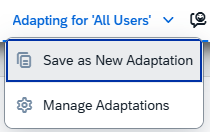
In the dialog, we give the view a new name and assign the corresponding roles with their priority. Here, we want to create the Admin permission first and therefore use the highest priority. Using "Add Roles," we can now add our Admin role for which the view should apply. Finally, save the new view.

Developer
Now we can begin with the developer role. To do this, we continue working directly in the view and begin hiding the first items in the UI. Simply click on the elements, such as the Create button in the list for creating a new software component.
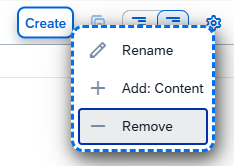
Then we switch from "UI Adaptation" to "Navigation" and go to the Object Page of a software component. There we can continue with the changes and remove the actions in the header.

At the list level for the branches, we can then remove the one remaining action and leave "Export Commit" active, as this function is still needed by the developers.

We are now finished with the adjustments and can save the new view. We assign it a name and assign the new view second priority so that it comes after the Admin view in the order. Don't forget to assign the new role here either.

To activate the changes, we need to press the "Activate" button in the version management area and give the new version a name. All changes are now saved, and we can proceed to testing in the next step.

If you want to transport the views later, you can record the version for transport using the "Truck". Basically, you can choose Workbench and Customizing, but SAP recommends transport via Customizing, where you can also transport the roles.
Test
Let's now take a look at the UI and go to the object page of our software component ZBS_DMO from an older article. Since we currently still have the Admin role, we can still see the various actions on the UI and work with them as usual.

Now, in the second step, let's change the role, remove ZBS_SWC_ADMIN, and give ourselves ZBS_SWC_DEVELOPER. If we then return to the software component after the update, the buttons will now be hidden.

Using the user menu in the upper right corner, we can find the currently used context via "About -> Application". In this case, the Developer is selected.

Transport
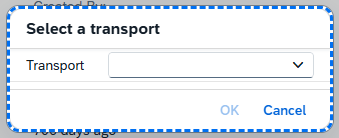
If you want to transfer the changes to the next system, you will find the "Transport" option for objects in Adaptation mode, in addition to "Activate". This writes the changes to a transport.
Security
However, you should note that in our example only the actions on the UI are hidden. The functions are still active in the service and can still be used if, for example, you call the OData directly. This example was initially only about making the application available to the developers and requires a leap of faith that the other functions will not be misused. You can also find the relevant information in the documentation.
Conclusion
With the new role-based Key User Extensibility, we no longer need to deploy a separate app variant to the system, but can directly provide the actual app to the user. Depending on their role, users then receive their view of the application.
Further information:
SAP Help - Adapting the UI for Specific Roles