RAP - Importance
Let's look at the importance of information within an SAP Fiori application and how we can use it to control visibility in the RAP application.

Table of contents
In this article, we'll look at the topic of importance and how you can use it to prioritize elements in the UI.
Introduction
SAP Fiori apps can be displayed on various devices (PC, tablet, smartphone). Just as the devices vary, so do the displayed resolutions and, consequently, the UIs. Therefore, it's all the more crucial that we consider the importance of information. Which information is important and which is less so when it comes to displaying it in a limited space? For this, we use importance to weight different elements differently. This allows the UI to decide which elements are displayed until the end and which can disappear from the UI first. For this, we'll again use our Sales App as an example and extend it with the relevant components.
Basics
Let's first take a look at some basics regarding importance.
Availability
Since importance primarily affects the UI, we'll look at the various UI annotations where this property is available. To do this, we press CTRL + SHIFT + A to open the search function in Eclipse and search for "UI". Now we can look at the UI annotations.
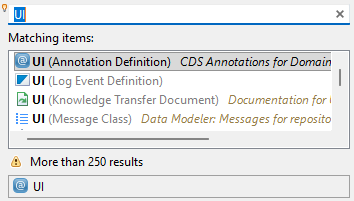
Let's go through the list of different elements where Importance is used:
- Elements - Various elements that begin with "identification", "lineItem", or "fieldGroup" can be directly influenced.
- Facet - Likewise, an entire "facet", which defines a collection of fields, can be influenced.
- Other properties - In addition, the attribute is also available for "statusInfo", "dataFieldDefault", and "connectedFields"; available.
Values
Basically, three values are currently defined in the ENUM:
- LOW
- MEDIUM
- HIGH
The default in the application, according to the definition, is NONE, which corresponds to MEDIUM. This means that all elements are initially defined as MEDIUM, and we can implement a corresponding gradation upwards or downwards. If we want to see an element for a long time, we set it to HIGH. If the information is less important, we set the element to LOW, and it disappears from the screen first when there is no more space.
Examples
Let's look at two examples of its use and functionality in this section.
List Report
In the classic List Report, we can assign importance to the various columns in the displayed table. However, this also depends on the table used. If we use a "Grid Table," we get horizontal scrolling, and importance doesn't play a role. By default, however, we usually get a "Responsive Table," which displays as many columns as there is space available. Therefore, in the test, we define three columns with varying levels of importance. The sales year and month are actually redundant information that can be derived from the sales date. Therefore, we set both columns above "lineItem" to LOW. The material at the end is particularly important to us, so we set it to HIGH.
@UI.lineItem: [ { position: 32, importance: #LOW  } ]
SalesYear;

@UI.lineItem: [ { position: 33, criticality: 'DataCriticality', criticalityRepresentation: #WITH_ICON, importance: #LOW  } ]
SalesMonth;

@UI.lineItem: [ { position: 160, value: '_SASold.MaterialId', importance: #HIGH } ]
_SASold;
In the browser, we use the feature to display a website in responsive design (F12 - Developer Tools). Now we gradually reduce the available screen area and observe the behavior of the UI. The columns with LOW are hidden first in the list. Then all undefined columns (NONE/MEDIUM) are hidden column by column until only our important column is visible.

Key field
What about key information within the table? By definition, the key fields should also be visible, as they automatically receive HIGH importance. Let's look at two elements that can be seen as keys:
- Semantic Key - The semantic key is a unique key that is usually readable, but not necessarily the key defined in the database. We define this in the Core Data Service header.
@ObjectModel.semanticKey: [ 'PartnerNumber', 'SalesDate' ]
- Table key - The actual key on the database. In RAP applications, a not easily remembered UUID is often used for this. In the UI annotations, we activate the display and place the field at the end.
@UI.lineItem: [
  { position: 300 }
]
UUID;
In this case, we conduct the same experiment. It is noticeable that the table key is also hidden very quickly. The rule therefore applies to the semantic key, and this remains until the end. In the end, all three fields are still displayed, but the system wraps the information to the next line simply because there isn't enough space available.

Complete Example
You can find the complete example in GitHub in the corresponding package for the Sales App. The changes from this article can be found in this Commit and you can follow the changes, plus the additional information.
Conclusion
How important is a field to you? With today's article, you should have gained an insight into the element and how it helps you to control your UI even better.