ABAP Tools - Working with Eclipse (Text-based editor)
You want to edit an object in the ABAP Development Tools in Eclipse, but the form-based editor doesn't have all the necessary functions? In this article, we'll look at an alternative.

Table of contents
In this article, we'll look at how to edit objects within Eclipse using a text-based editor.
Introduction
With the introduction of the ABAP Development Tools in VS Code, we already touched upon the topic of ABAP File Format (AFF), which is used to display all types of objects in text editors. Adjusting objects outside of form-based editors can certainly be a challenge. However, it can also offer certain advantages. Today we want to look at one such advantage and point out the possibilities.
Customization
In our Clean Core Measurement (CCM) project, we currently have a space and a page, which we also deliver directly at launch. Now, we wanted to add a new app to the page, which we had created specifically for this topic. For this, you should know that the page is currently divided into three different areas. These three areas will also be visible later in the Fiori Launchpad. The different applications are integrated there. This can be seen in the screenshot on the left at the bottom.

In this form-based editor, we primarily work with the buttons and the context menu. For example, we can add a new section via "Add," which is a grouping of apps. Since we want to add a new app, we right-click on "Visualizations" and can then select "Add Visualization" Insert a new application.

We give the application a name and select the appropriate IAM app from the system that we created earlier. The object now appears at the end of the list, where it is used by default.

Result
The new application is displayed in the Reporting section, but, as we have already seen in the list, at the very end of the apps. Basically, we want the System Overview to be the first thing, as this should be the entry point even before the Dashboard.

However, we still have a problem here. While adding objects in the form-based editor works very well, changing the order via the various actions is not possible, as there is no drag-and-drop functionality to move the items within a space. Deleting and recreating in the correct order would be possible, but it would also be very time-consuming.
Solution
The solution is actually quite simple. We should switch from the form-based editor to the text-based editor as JSON. You can do this by right-clicking in the Project Explorer, selecting "Open With", and then "Source Editor". This is already supported for many objects, but not all.

Our configuration is now loaded as a JSON object. For example, we cannot modify the upper part of the JSON. It is locked against writing. However, we can further modify the information below. For instance, we can see the different sections, even the title, which we could then also modify, and the various visualizations that have been created within the section. Now we can move the entry for the overview and place it at the beginning of this area.

If we then reopen the object in the form-based editor, we can see that our change has been made and the app for the system overview is now listed first.
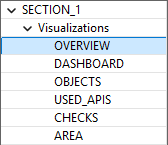
Final result
Let's then go back to the Fiori Launchpad and refresh the entire application, The page will also reload. Our app for the system overview is now at the top of the launchpad. And we have the correct order as we want to present it to our users.

Conclusion
Changes via form-based editors eventually reach their limits if certain features, such as sorting entries, are not available in the editor. In contrast, the text-based editor has the advantage that you can make all changes directly to the file, but this also carries a small residual risk if, for example, you change different file formats such as JSON and cause an error. However, there is also a syntax check here that tells you whether the JSON is still valid.


